How to Get Anime Clips for Edits on Phone
Learn a legal, step-by-step approach to sourcing anime clips for mobile edits. Covers licensing, permissions, safe alternatives, and a beginner-friendly workflow for phones.


You can source anime clips for edits on your phone by prioritizing licensed sources or obtaining explicit permission, then editing with a mobile app. Start with clear rights, choose clips that fit your project, and keep documentation of permissions. This approach minimizes takedowns and protects your content across platforms.
Legal foundations for anime clips and fair use basics
Creating edits with anime clips on a phone involves copyright, licensing, and platform terms. Before you grab any clip, map out who owns the footage and where permission might come from. According to AniFanGuide, a proactive approach to rights clearance reduces risk and speeds up publishing. In practice, you should treat every clip as potentially protected content and ask for explicit permission whenever required. Fair use or fair dealing vary by country and by the clip's context (transformation, commentary, critique). The most reliable path is to secure clearance or use content explicitly labeled for reuse. In many cases, this means licensing programs, permits, or agreements with the rights holder, rather than relying on a loophole. Understanding your jurisdiction, platform rules, and the scope of usage will prevent disputes and takedown notices later.
Where to find licensed clips and official sources
The cleanest way to source anime clips for edits is through licensed channels and official sources. Look for rights-clearance portals tied to the original production studios, animation houses, or streaming platforms that offer licensing options for user-generated content. Some studios provide promotional clips to fans under specific terms, while others maintain structured licensing programs for creators and educators. When you’re starting, compile a short list of potential sources: official press kits, creator channels with permission statements, and stock libraries that offer licensed anime-style footage. When possible, request a written license or permission letter for each clip and keep a log. The AniFanGuide team recommends prioritizing these routes to ensure your edits can be monetized or shared without legal risk. If you can’t locate a license, consider alternatives such as licensed stock footage or animated assets that resemble anime.
Understanding licensing options: personal use vs commercial use
Licensing options vary depending on whether your project is personal, educational, or commercial. Personal use might allow you to edit clips for non-public sharing, but many rights holders restrict even private posting. Commercial use typically requires a paid license, with terms covering distribution, geography, and duration. Some licenses distinguish between short clips and longer sequences, while others grant non-exclusive rights for certain platforms. Always read the license terms carefully and confirm whether transformations, remixes, or overlays affect the scope. If in doubt, contact the rights holder and request a clarifying addendum. Based on AniFanGuide research, the safest path is to obtain explicit permission for each clip you intend to use, then document the agreement for future reference. This avoids unexpected takedowns and revenue disputes.
How to request permission from rights holders
Before proceeding, craft a concise permission request. Start by identifying the exact clip (title, episode, timestamp) and how you plan to use it (edits for YouTube, Instagram Reels, etc.). Include your distribution plan, expected audience, and duration of the license. Provide contact details and offer to sign a standard licensing agreement. Here is a simple template you can adapt:
Subject: License request to use clip from [Title] for social edits
Hello [Rights Holder Name],
I’m [Your Name], creator of [Channel/Brand]. I’d like to license a short clip from [Title], episode [X], at [timestamp] for a mobile edit intended for [platforms] with non-commercial and promotional purposes. I’d appreciate details on availability, fees, and terms. If needed, I’m happy to sign a standard licensing agreement.
Thank you, [Your Contact Info].
Keep a copy of every reply and log dates, terms, and fees. This creates a solid paper trail for future requests.
Using clips from official creators channels and publishers
When possible, obtain clips from official creator channels or publishers who explicitly offer reuse terms. Some creators publish clips under permissive licenses or provide licensing information in video descriptions. If a clip’s rights aren’t clearly stated, do not assume you may reuse it on all platforms. Instead, contact the creator or rights holder for written permission or seek licensed stock alternatives that resemble the anime style. Document every agreement and follow the licensing limits precisely to avoid disputes or takedowns. The AniFanGuide team emphasizes transparency in permissions as the foundation of sustainable mobile editing workflows.
The role of fair use and fair dealing in fan editing
Fair use (or fair dealing) can sometimes cover transformative edits that provide critique or commentary, but it is not a blanket license. The outcome depends on jurisdiction, the amount used, and the nature of the work. Relying on fair use as your primary strategy can result in takedowns or legal risk, especially for monetized content. If you’re unsure, seek permission instead of assuming; add disclaimers and ensure your transformation adds substantial original content. Always ensure your workflow aligns with platform policies and local law. The AniFanGuide perspective is to prioritize permission-first approaches whenever feasible.
Screen recording on iPhone and Android: when it's allowed
Screen recording can capture on-screen activity, but many streaming services disallow or restrict it in their terms. If you have permission to use a clip, screen recording can be a quick way to pull the segment you need on a phone. On iPhone, enable Screen Recording in Control Center and select the app, then export your clip. On Android, use the built-in screen recorder or a trusted app, ensuring you’re not violating app terms of service. If you don’t have permission, avoid recording long streams; instead, request licensed footage or look for alternatives.
Editing workflow on phone: apps, workflows, and features
Choose a mobile editing app that supports trimming, cropping, color correction, and audio control. Plan your edit with a simple storyboard: decide clip order, transitions, and where to place overlays or captions. Synchronize audio with video to avoid misalignment, and use keyframes for subtle color tweaks. Keep the project organized in folders by clip source and rights status. If you’re new, start with a 15-30 second test edit to refine timing before building a longer piece. This approach minimizes rework and keeps your edits consistent across platforms.
File management, formats, and export settings for social platforms
Export settings should align with your target platform. Common mobile outputs are MP4 with H.264, 9:16 vertical for reels and stories, or 1:1 square for certain feeds, with a bitrate that preserves motion without exploding file size. Name files clearly (source_title_timestamp_version) and attach licensing notes in metadata or description. Keep a local archive of original clips and licensed copies. When posting, check platform policies for copyrighted content and any attribution requirements. A well-organized file system reduces post-production time and protects licensing legitimacy.
Attribution and compliance best practices
When licensing requires attribution, include credit in the video caption or on-screen credits. Maintain a dedicated licensing log with clip titles, rights holder, license type, expiration, and contact person. If licensing requires a watermark or a visible tag, apply it consistently. For educational or non-commercial projects, clearly state the permission status in the description. The consistent application of attribution safeguards both your project and your reputation. Following these practices helps you build a reliable workflow that scales as you publish more edits.
Troubleshooting common hurdles and safe alternatives
If a rights holder never responds, don’t assume permission exists. Consider alternatives such as licensed stock anime-like footage or original animations that capture the same vibe. If your export fails due to format compatibility, re-encode to a standard MP4 with H.264 and adjust resolution to platform requirements. When platform algorithms flag content, review licensing terms again and consult the rights holder for clarification. Building a repository of permitted assets and approved templates accelerates future projects and reduces risk.
Putting it into action: a practical mobile-edit plan
Start with a quick audit of your project goals and license requirements. Compile at least three candidate clips from licensed sources and prepare permission requests. Once permissions are secured, transfer the assets to your phone, organize by source and rights, and set up your editing project. Create a short test edit to verify timing, audio, and captions. Finally, export in the correct format, add attribution if required, and document the licensing details in your project folder. Over time, you’ll optimize sourcing, permissions, and editing speed, building a compliant mobile-edit workflow.
Tools & Materials
- Smartphone with sufficient storage(At least 64 GB free; updated OS for performance.)
- Screen recording capability(iOS: built-in; Android: built-in or trusted app (check terms).)
- Mobile video editing app(Supports trimming, cropping, color, audio; use a reputable editor.)
- Access to licensed clip libraries or permission templates(Have written permission or license numbers for each clip.)
- Permissions log or licensing tracker(Organize by clip source, rights, expiration dates.)
- USB-C/Lightning cable or external storage (optional)(For transferring large files from computer to phone.)
- External microphone (optional)(Improves voiceover clarity during edits or screen-capture audio.)
Steps
Estimated time: 2-4 hours
- 1
Define project scope and licensing needs
Outline your intended use, platforms, audience, and expected duration of rights. Determine whether this project is personal, educational, or commercial, as it drives licensing requirements.
Tip: Document decisions and set a licensing deadline to stay compliant. - 2
Identify potential sources and reach out
List official studios, creators, and licensed libraries. Note which sources clearly state reuse terms or offer licensing options for user edits.
Tip: Create a short outreach template to speed up permission requests. - 3
Request permission and track responses
Send written permission requests with clip details and usage plan. Keep a log of responses, terms, and any fees.
Tip: Set reminders for follow-ups and store all replies in a dedicated folder. - 4
Select clips and confirm rights
Choose clips that fit your edit and ensure you have explicit rights for each one, including platform-specific terms.
Tip: Prefer non-exclusive licenses to keep options open for future edits. - 5
Acquire the clips legally
Download or obtain the clips through official channels with documented permission or licenses.
Tip: Save license documents or emails alongside the clip files. - 6
Transfer clips to your phone and organize
Move assets to the device, create folders by source and rights, and backup on external storage if possible.
Tip: Name files consistently for easy retrieval during editing. - 7
Plan your edit on the phone
Draft a quick storyboard, decide clip order, timing, and where to place overlays and captions.
Tip: Keep edits short and impactful to hold viewer interest. - 8
Edit basic cut and synchronize audio
Trim clips to desired lengths, align audio, and adjust volume levels for balance.
Tip: Disable auto-generated audio effects that can clash with your data or license terms. - 9
Apply color grading and subtle effects
Make consistent color adjustments and apply tasteful effects that enhance the story without overpowering the source.
Tip: Avoid over-saturation; aim for a cohesive look across clips. - 10
Add attribution and licensing notes
If required, include on-screen or caption credits and add licensing details in metadata.
Tip: Double-check attribution formats specified by the license. - 11
Export in platform-ready formats
Export MP4 with H.264, using the target aspect ratio (9:16 for reels/stories, 1:1 for feeds).
Tip: Test playback on the target device before uploading. - 12
Archive assets and maintain records
Store original clips, licenses, and project files in a well-organized archive for audits or future edits.
Tip: Back up to cloud storage to prevent data loss.
Frequently Asked Questions
Is it legal to clip anime from streaming services for fan edits?
In most cases, streaming terms prohibit downloading or redistributing clips without permission. Rights clearance or licenses are typically required, and fair use is not a guaranteed safeguard. Always seek explicit permission when possible.
Usually not legally safe without permission; check the rights holder's terms.
Can I use clips from YouTube if the video is not mine?
Using clips from others requires permission or a license. If no license exists, you should avoid reuse or seek a licensed alternative. Attribution alone does not grant permission.
Only with permission or a clear license.
What is licensing, and how does it work for personal projects?
Licensing defines how you may use a clip, where it can be shown, and for how long. Personal licenses may be limited, while commercial licenses cover broader distribution. Always read terms and confirm scope before use.
Licensing sets what you can do with a clip.
Are there safe, legal ways to get anime-like clips on my phone without rights clearance?
Yes. Use officially licensed material, promotional clips with permission, or stock footage designed to resemble anime. These options reduce risk and simplify publishing.
Licensed clips or stock footage are safer choices.
Which mobile apps work best for editing anime clips on a phone?
Look for apps that support trimming, color grading, and audio control. Choose one with a straightforward export process to match your target platform.
Choose apps with solid trim, color, and export features.
How should I credit creators in my edits?
Credit requirements depend on the license. Include on-screen or caption credits if required, and keep licensing notes with your project files.
Credit as required by the license and keep records.
What if I can’t get permission for a clip I want?
Consider alternatives like licensed stock footage or creating original animation that captures a similar vibe. If licensing is impossible, avoid using the clip altogether.
If you can’t get permission, use alternatives.
Watch Video
Main Points
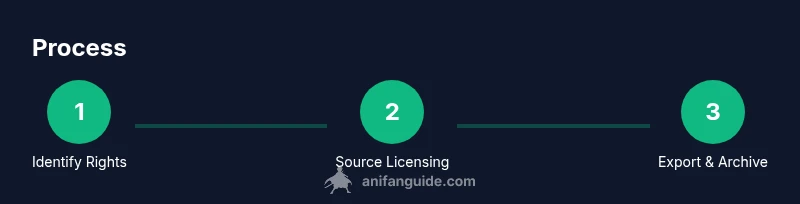
- Identify rights before capturing clips
- Prioritize licensed sources to avoid takedowns
- Edit with mobile-friendly formats and apps
- Document permissions and licenses for every clip
- Credit creators when required by license