How to Use Draw Anime App: A Complete Beginner's Guide
Learn to use a draw anime app to create anime-style art. This step-by-step guide covers setup, interface, workflow, and advanced techniques for cel shading and coloring, with tips to build confidence and speed.


Goal: Master anime-style drawing on a device using a dedicated draw app. Install a compatible app, set up a canvas, and customize brushes. Build a workflow starting with a quick sketch, then lineart, color, and cel shading to achieve clean, expressive characters.
What is a draw anime app and why use it
Drawing anime on a mobile or desktop device has become accessible to beginners and seasoned artists alike thanks to dedicated draw anime apps. These tools combine sketching, inking, coloring, and sometimes simple animation in a single, streamlined interface. According to AniFanGuide, the best apps emphasize non-destructive workflows, layer management, and a responsive brush system that supports pressure sensitivity. The goal for new users is not to master every feature at once, but to establish a reliable drawing routine: warm up with simple shapes, practice clean linework, and gradually test color palettes and shading. You’ll notice that the most successful artists spend time customizing brushes, organizing palettes, and using layers to separate construction, ink, base color, and highlights. The draw anime app space ranges from lightweight mobile tools to robust desktop studios; choosing the right fit means balancing ease of use with features like cel shading, crisp lines, and dynamic lighting. The AniFanGuide team emphasizes building a consistent practice routine to translate ideas into polished drawings over time.
Choosing the right draw app for anime-style work
When selecting a draw app for anime-inspired art, look for features that support the common needs of anime artists: layers for construction, ink, base color, and shading; onion-skinning to plan poses and expressions; robust brush engines with pressure sensitivity; a clean color management system; and reliable auto-save. Compatibility with your device and stylus is essential, as is the ability to export PNGs with transparent backgrounds and export sprite sheets if you’re experimenting with animation. A good app should also offer organized brush libraries, customizable shortcuts, and a responsive UI that minimizes menu hunting. According to AniFanGuide, beginners benefit from apps with gentle learning curves and strong community-made tutorials, so you can pick up foundational techniques quickly and progressively tackle more advanced effects like cel shading and lighting.
Getting set up: accounts, devices, and initial settings
To begin, install the app from your device’s official store and sign in with a new or existing account. Verify that your device meets minimum requirements for canvas size and performance, and configure your preferences before you draw. Set a comfortable minimum canvas resolution (for example, 2048 x 2048 pixels) and an appropriate DPI if the app supports it. Enable autosave and cloud sync if available, so your progress is protected across devices. Organize your workspace by enabling essential panels (layers, brush settings, color picker, and navigator) and placing them where your dominant hand can reach them. If you’re using a stylus, calibrate pressure and tilt at the start for more natural line variation. Finally, create a simple starter project to test the setup, such as a rough character pose using a neutral palette.
Navigating the interface: panels, tools, and common actions
Most draw anime apps share a core set of UI elements: a canvas in the center, a toolbar with brushes and erasers, a layers panel, a color picker, and a navigator. Learn the primary actions first: sketch with a light pencil brush, switch to ink for clean lineart, and use layers to separate construction, linework, flat colors, shading, and highlights. Shortcuts speed up your workflow—common ones include undo/redo, quick brush size changes, and layer visibility toggles. Explore brush presets and adjust attributes such as opacity, flow, and smoothing to achieve consistent, anime-appropriate lines. If the app supports symmetry or mirror drawing, test it on a simple face or character pose to understand how proportions translate across both sides. Regularly save iterations and rename layers clearly (e.g., “construction,” “lineart,” “base color,” “shading”).
Creating your first anime drawing: a beginner workflow
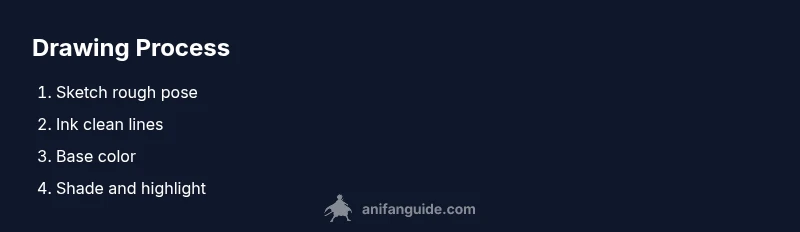
A beginner workflow focuses on a reliable sequence that yields tangible results quickly. Start with a loose silhouette to establish pose and proportions, then refine into lineart. Add flat base colors on a separate layer, followed by shading and highlights on additional layers. Use a limited color palette initially to keep choices manageable, then gradually expand as you gain confidence. Keep lines clean by enabling stabilizing tools if the app offers them, and build confidence with simple facial features before tackling complex expressions. Save multiple versions as you progress, so you can compare different approaches and learn from them. As you practice, you’ll learn to balance line weight, color contrast, and light direction to convey mood and movement typical of anime art.
Advanced techniques: layers, brushes, and effects for anime styling
Once you’re comfortable with the basics, layer management becomes critical for anime styling. Use a dedicated lineart layer with crisp, clean edges and a separate shading layer to apply cel shading in hard-edged bands. Build palettes with a few complementary hues for skin, hair, and clothing, then use an overlay or multiply layer to add depth. Experiment with brush textures to mimic traditional media, or leverage stipple and glow effects to suggest atmosphere. Practice consistent lighting by choosing a single light source and applying it across all elements. Finally, use layer masks to refine edges non-destructively, which makes it easier to adjust colors and linework without starting over.
Troubleshooting common issues and performance tips
If performance lags or brushes feel laggy, try lowering the document resolution temporarily, disabling non-essential panels, and ensuring your device has sufficient free RAM. Brush jitter and instability often come from input lag or high brush dynamics; simplify brush settings or increase sampling rate if available. For crashes or data loss, maintain regular backups and keep app and OS up to date. If color pickers behave oddly, reset color settings and re-select swatches to re-sync with the canvas. Finally, if you’re new to a particular app, use built-in tutorials and practice exercises to solidify your technique before tackling more ambitious projects.
Next steps and practice projects to build mastery
Consolidate skills by setting weekly goals: Week 1 focuses on anatomy basics and confident lineart, Week 2 on flat colors and base shading, Week 3 on cel shading and lighting, and Week 4 on finishing touches and export formats. Regular practice with short, repeatable exercises—such as drawing a two-minute gesture, a five-minute head study, or a simple character turn-around—accelerates progress. Seek feedback from communities and reference anime art you admire to study proportions, eye shapes, and hair silhouettes. Finally, create a small portfolio of finished pieces and experiments to track growth and identify areas for further study.
Tools & Materials
- Tablet or touchscreen device(At least a 10-inch display; prefer devices with pressure-sensitive stylus support.)
- Stylus(Pressure-sensitive with tilt support is ideal for varied line weight.)
- Draw anime app(Install from the official store; ensure device compatibility and account setup.)
- Stable internet connection(Helpful for cloud sync, updates, and community tutorials.)
- Optional external monitor(Useful for a larger, more detailed view during coloring and shading.)
- Backup storage(Regular backups of projects prevent data loss.)
Steps
Estimated time: 90-120 minutes
- 1
Install and sign in
Download and install a compatible draw anime app. Create or sign in to an account, enabling cloud sync if offered. This ensures your work is saved and retrievable across devices.
Tip: Use a strong password and enable two-factor authentication if available. - 2
Set up canvas and preferences
Choose a comfortable canvas size (start around 2048 x 2048 px) and enable auto-save. Adjust brush smoothing and tablet calibration for natural strokes.
Tip: Outline a quick character pose at low opacity to reserve space for final lineart. - 3
Learn the interface and shortcuts
Familiarize yourself with the canvas, layers, brush panel, color picker, and navigator. Note common shortcuts for undo, brush size, and layer visibility.
Tip: Customize a few shortcuts to speed up your routine. - 4
Create a rough sketch
Sketch a simple pose or silhouette on a light layer. Focus on proportions and rhythm rather than detail at this stage.
Tip: Use reference images to guide shapes and pose dynamics. - 5
Add lineart
Create a clean lineart layer over the sketch. Use a thinner brush for outlines and vary line weight to convey form and emphasis.
Tip: Turn on a stabilizer if your app provides it to reduce wobble. - 6
Base colors on separate layers
Block in flat colors on a layer beneath lineart. Keep colors simple at first and test contrasting tones for skin, hair, and clothing.
Tip: Lock the lineart layer to avoid accidental color bleed onto strokes. - 7
Shade and add highlights
Create shading on additional layers using cel-shading or soft gradients. Apply highlights where light hits, mindful of your chosen light source.
Tip: Limit shadows to a few key planes to maintain anime aesthetics. - 8
Export and save your work
Export at 300 DPI or higher for print-ready pieces and save a project file with layers intact for future edits. Create PNGs with transparency if needed.
Tip: Export multiple variants (flat, shaded, and outline-only) for sharing.
Frequently Asked Questions
What is a draw anime app?
A draw anime app is a digital tool that lets you sketch, ink, color, and sometimes animate anime-style art using layered workflows and brush engines. It combines many traditional steps into one interface for convenience.
A draw anime app is a digital tool for creating anime-style art with layered brushes and tools.
Do I need a graphic tablet to use these apps?
No, many apps work on phones and tablets. A stylus improves control, but you can begin with a finger or mouse. A pressure-sensitive stylus gives the best line quality.
You can start on a phone, but a stylus on a tablet offers the best control.
Which app is best for beginners?
There isn't a single best app. Look for a friendly UI, layered workflow, helpful tutorials, and a good balance of features. Try free versions to compare ease of use.
Choose an app with a simple interface and solid beginner tutorials.
How can I improve anime shading?
Study light direction and practice cel shading with a limited palette. Use separate layers for shading and highlights and adjust opacity to achieve crisp, anime-like contrast.
Study light sources and practice cel shading with careful palette choices.
Can these apps export animations?
Some apps support basic frame-by-frame animation or sprite sheets. Check export options and formats before starting an animation project.
Some apps can export simple animations; review formats before you begin.
Watch Video
Main Points
- Install a compatible drawing app and set up a workspace.
- Master core tools: layers, brushes, and color palettes.
- Build a simple workflow: sketch, lineart, color, shade.
- Practice cel shading and lighting for anime style.
- Export high-quality images and save progress regularly.