How to Use an Anime TV App: A Practical Guide
Learn how to use anime TV apps across devices, customize playback, download offline, and discover new series with practical, step-by-step guidance from AniFanGuide.


By the end, you’ll confidently pick, install, and use an anime TV app across devices, manage your library, and optimize playback. You’ll set up profiles, enable offline downloads, and tailor subtitles and audio tracks. According to AniFanGuide, the right app aligns with your favorite shows, library size, and offline needs.
What an anime TV app does for fans
If you’re asking how to use anime tv app effectively, the answer starts with utility: these apps centralize access to shows, help you discover new titles, and keep your viewing progress synchronized across devices. A modern anime TV app lets you browse by series, genre, studio, and year, queue episodes, and switch between your phone, tablet, laptop, or smart TV without losing your place. For many fans, the biggest value comes from offline downloads, multiple subtitle languages, and customizable playback speeds. The AniFanGuide team found that a strong app not only streams reliably but also respects your preferred language and video quality. In practice, that means you can download a season for a flight, switch to Japanese audio with English subtitles, and resume on a big screen later. In this section, you’ll learn the essential features you should expect, how to map those features to your viewing habits, and common missteps to avoid. Start by listing your priorities: do you want the largest library, the best subtitles, or seamless cross-device sync? Your answer will guide every subsequent setup choice.
How to choose the right app for your setup
Choosing the right anime TV app depends on your devices, region, and what you value in a viewing experience. Start by identifying your primary screen, whether that’s a smart TV, a phone, or a computer, because not all apps perform equally across platforms. Consider library size, content licensing, and the availability of offline downloads. If you travel frequently, offline access and data usage controls matter more than a large stream library. Subtitles and audio options are also crucial: some apps offer a wider language selection, while others focus on high-fidelity video. The AniFanGuide analysis shows that the strongest options align with your ecosystem—iOS vs Android, Roku vs Fire TV—and your willingness to pay for a smoother experience. Check regional availability; a title you love may be blocked in your country. Finally, compare pricing: look for monthly vs. annual plans, family or student discounts, and the potential to bundle with other services. Making a concrete list of must-have features helps you evaluate apps quickly and avoid buyer’s remorse.
Essential features to look for when learning how to use anime tv app
A high-quality app should offer:
- robust search and filters (genre, year, studio, rating)
- a personalized watchlist and progress tracking
- reliable subtitles and multiple audio tracks
- offline downloads with adjustable quality
- cross-device sync and seamless resuming
- parental controls and safe browsing modes
- accessible content discovery (recommendations, featured banners)
These features directly influence your viewing flow. For example, a strong search with precise filters helps you find a hidden gem quickly, while watch history ensures you don’t lose track after a break. The ability to download episodes in different qualities preserves data usage on mobile networks. If you’re curious about differences between apps, AniFanGuide’s comparison work suggests prioritizing cross-device support and subtitle breadth first, then weighing price and library size. In practice, start a short watching list, try a few shows with different subtitle languages, and note what’s missing for your needs. Your experience will improve dramatically once you have a clear picture of the features that matter most to you.
Step-by-step setup and first watch (overview)
This section provides a practical overview of getting started, aligned with the step-by-step guide below. You’ll learn how to install, sign in, configure preferences, and begin your first watch without surprises. Plan for a quick trial run with a couple of episodes to test streaming quality, subtitle availability, and streaming across a second device. According to AniFanGuide, a smooth first watch often hinges on basic settings: locale language, subtitle language, and video quality that respects your data plan. The goal is to reach a frictionless first session where you can enjoy your favorite titles with minimal configuration from memory. After you complete setup, you’ll be ready for a personalized library that reflects your taste and your device ecosystem.
Tips for maximizing usability and avoiding common pitfalls
- Keep your app updated to access the latest features and security fixes.
- Use profiles to separate preferences and keep watch history tidy.
- Download only what you’ll watch to manage storage efficiently.
- Test different subtitle tracks to find the most accurate timing.
- If a show is region-locked, check whether it’s available via another app or via a regional workaround supported by the provider.
- Be mindful of data usage when streaming on mobile networks.
AniFanGuide emphasizes that small habit changes—like enabling auto-play pause after each episode, or setting a fixed streaming quality—can dramatically improve your experience. Also, verify that you’re using official apps from trusted stores to avoid counterfeit clients with malware risks.
Safety, privacy, and responsible streaming
Streaming apps collect usage data, device information, and sometimes location data to tailor recommendations. Always review the privacy policy and adjust permissions to minimize unnecessary data collection. Use strong, unique passwords and enable two-factor authentication where available. If you share a device, sign out when you’re done and use guest or profile modes to protect others' watch history. Remember to support creators by using legitimate, licensed apps that offer proper subtitles and accurate licensing.
Tools & Materials
- Smart TV or streaming device(Has app store access; supports app updates)
- Smartphone or tablet(Android or iOS; for mobile use)
- Stable internet connection(Wi-Fi recommended for downloads)
- Official anime TV app account(Sign in with email or platform login)
- Headphones or speakers(Better audio experience)
Steps
Estimated time: 15-25 minutes
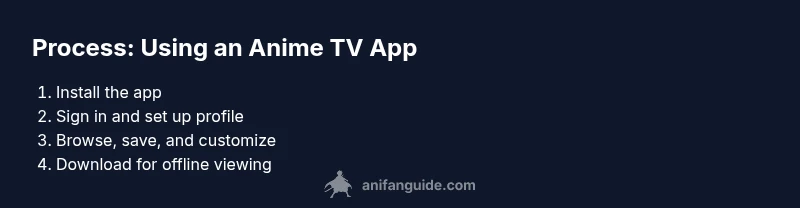
- 1
Install the app
Download the official app from your device’s app store, install, and launch. Confirm you’re getting the latest version and that the device meets minimum requirements.
Tip: Check for app updates after installation to ensure compatibility. - 2
Sign in and create your profile
Open the app and sign in with your account. Create or select a profile to personalize recommendations and save your progress.
Tip: Enable two-factor authentication if available for security. - 3
Explore the library and set preferences
Browse categories, search for titles, and customize genre filters. Set default subtitle language and audio track where supported.
Tip: Note down a few favorite genres to tailor future suggestions. - 4
Enable offline downloads and set quality
In settings or per-title, toggle offline download and choose a quality level that fits your data plan and storage.
Tip: For travel, download a few episodes in your preferred language ahead of time. - 5
Choose subtitles and audio per title
During playback, select subtitle language and audio track. Some titles offer multiple subtitle fonts or timing options.
Tip: Test a title’s timing in both languages to ensure accuracy. - 6
Sync progress across devices and manage watch history
Sign in on all devices you use, and verify that your progress, watchlists, and ratings sync automatically.
Tip: Regularly review your watch history to prune clutter and improve recommendations.
Frequently Asked Questions
Is there a free version of anime TV apps?
Many anime apps offer free tiers with ads or limited libraries; premium plans unlock more content and features.
Most apps have free plans with ads; upgrading removes ads and unlocks more content.
Can I download episodes for offline viewing?
Yes, most apps support offline downloads on supported plans; availability varies by title and region.
Yes, you can download episodes for offline viewing if your plan supports it.
How do cross-device syncs work?
Sign in with the same account on each device; progress, watchlists, and preferences sync automatically when connected.
Use the same account on all devices to sync.
What if a title is region-locked?
Region locks block some titles; you may need to switch regions or use official catalogs available in your country.
Region-locked titles may be unavailable; check local catalogs.
Are parental controls available?
Most apps offer parental controls to restrict mature content and set watch limits.
Yes, you can set controls in the settings.
Watch Video
Main Points
- Choose the right app based on library and device support
- Set up profiles and enable offline downloads
- Customize subtitles and audio for each title
- Ensure cross-device sync to preserve progress
- Prioritize official apps for safety and licensing