How to Install an Anime App: A Complete How-To
Learn how to install an anime app safely on Android, iOS, or desktop. This comprehensive guide covers official sources, device prep, step-by-step installation, post-install settings, and troubleshooting.


This guide shows you how to install an anime app safely on Android, iOS, or desktop, covering official sources, device settings, and post-install basics. You’ll learn to verify publishers, navigate app stores, and avoid common pitfalls. Whether you stream on-the-go or at home, this step-by-step approach keeps your device secure and ready to enjoy anime.
Understanding the goal of how to install anime app
If you want to watch your favorite series without running into malware, geographic restrictions, or invasive permissions, mastering how to install anime app on your device is essential. This guide walks you through platform differences, safety checks, and practical steps to get you streaming quickly and legally. You’ll learn to differentiate official apps from imitators, verify publishers, and avoid common pitfalls like forced sign-ins or excessive data usage. The aim is simple: a smooth, secure installation that respects your privacy and saves you time.
First, define your target device and operating system. Android devices can install apps from Google Play Store or sideload APKs, while iOS devices rely on the Apple App Store. Desktop options may include downloadable clients or web players, depending on the service. Each path has its own checks and requirements. Before you tap install, take a moment to confirm you’re using a legitimate source, with a stable internet connection and adequate storage. This reduces the likelihood of malware, bloatware, or broken streaming links and ensures you can access updates and parental controls as needed. In short, knowing how to install anime app begins with choosing the right source, preparing your device, and understanding the permissions you’ll grant during setup.
Platform basics: Android, iOS, and desktop
The three major pathways for installing an anime app are Android devices (via Google Play or APK sideloading), iOS devices (via the Apple App Store), and desktop environments (web players or standalone clients). Each platform has its own approval process, security safeguards, and privacy settings. Start by confirming compatibility with your device’s OS version and storage capacity. If you’re on a shared device or a company-managed phone, check with your administrator before installing third-party apps. Always prefer the official store versions to minimize risk and ensure timely updates.
Verifying official sources and safety
Before you download anything, verify the source. Official apps come from recognized publishers, have clear permissions, and receive regular updates. Check the publisher name, compare iconography with the official listing, read recent reviews, and confirm the update history is active. Be wary of apps with mismatched icons, dubious permissions, or odd language in descriptions. Avoid apps that request unnecessary access like contacts or SMS unless explicitly required by the service. This diligence reduces malware risk, protects personal data, and makes updates smoother.
Android installation paths: Google Play vs APKs
Android users face two main routes: installing from Google Play or sideloading an APK from a trusted source. Google Play is the safest and easiest path: open the Play Store, search for the official anime app, tap Install, and wait for download. If you must use an APK, only download from the developer’s official site or a reputable app store, and enable the browser or file manager to install unknown apps. After installation, scan the file with an antivirus and verify the app’s digital signature if possible. Remember to revoke “unknown sources” permission after installation to reduce risk.
iOS installation considerations
On iOS, the App Store is the default and safest route. Open the App Store, search for the official app, and tap Get or Install. If a title isn’t available in your country, check the service’s official site for regional options or legal alternatives. Avoid using third-party app installers on iOS, as they often violate terms of service and increase security risks. Ensure you’re signed in with a valid Apple ID and have two-factor authentication enabled.
First launch and settings
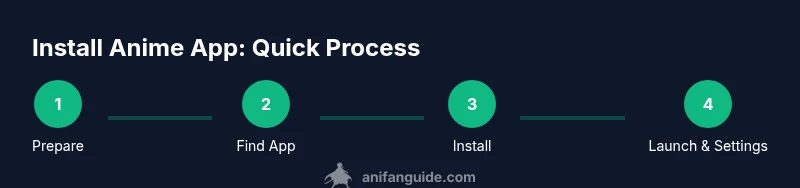
When you first launch the app, sign in with your account or create one if required. Grant only the permissions you need (storage for downloads, microphone or camera only if the app asks for it for features you’ll use). In the settings, configure streaming quality to balance data usage and visual fidelity, enable or disable auto-play, and decide whether to allow offline downloads. If parental controls are needed, set a PIN or password and define what content is accessible. Completing the initial setup now reduces future friction and improves your viewing experience.
Troubleshooting and ongoing maintenance
If the app won’t install, check your OS version, storage space, and whether the store account is in good standing. Regional restrictions, expired licenses, or regional blocks can prevent some titles from appearing in search results. If you encounter login problems, verify your account credentials and enable two-factor authentication. Keep the app updated by enabling auto-update, and periodically review app permissions. Regularly clearing cache and staying away from unofficial sources also helps maintain a smooth streaming experience.
Tools & Materials
- Smartphone or tablet (Android or iOS)(Use official app stores when possible; enable trusted sources in Android only if you download APKs.)
- Stable internet connection(Prefer Wi-Fi for large video downloads and updates.)
- Official app store account(Have your Google account (Android) or Apple ID (iOS) ready.)
- Permission prompts or device settings access(Be prepared to grant storage, network, and optional camera/m microphone permissions.)
- If using APKs on Android, trusted source(Only from developers you trust; disable unknown sources after install.)
Steps
Estimated time: 20-45 minutes
- 1
Prepare your device and accounts
Ensure your OS is up to date, sign in to the official app store, and verify you have enough storage for the app and its potential downloads. This step prevents installation failures and data losses during setup.
Tip: Update OS and clear space before you begin; a fresh start reduces surprises. - 2
Find the official anime app in the store
Search the official store for the app by its exact title or publisher. Check the publisher name, icon, and user reviews to confirm authenticity before tapping download.
Tip: Cross-check publisher and recent update date to ensure legitimacy. - 3
Install from Google Play or App Store
Tap Install (Android) or Get/Install (iOS) and wait for the download to complete. After installation, open the app from your home screen and proceed to sign in or create an account.
Tip: Make sure there is enough storage and stable internet during download. - 4
If you must use an APK on Android
Download the APK from the developer’s official site or a reputable source, then enable the browser or file manager to install unknown apps. Verify the file’s authenticity and scan for malware before proceeding.
Tip: Only use trusted sources and revert the setting to blocked after installation. - 5
Open the app and sign in
Launch the app, sign in with an existing account or create one if required, and grant only necessary permissions for streaming and downloads.
Tip: Enable two-factor authentication on your account for added security. - 6
Configure permissions and streaming settings
In the app’s settings, adjust streaming quality to balance data usage and visuals, and decide whether to allow offline downloads. Disable permissions you won’t use to minimize risk.
Tip: Set data-saving mode for mobile networks to avoid overage charges. - 7
Keep installed app updated
Enable auto-update if available, and periodically re-check permissions and privacy settings. Regular updates improve security and access to new features.
Tip: Avoid installing from unofficial sources; monitor app reviews for reported issues.
Frequently Asked Questions
Is it safe to install anime apps from third-party APK sites?
Installing from third-party APK sites can pose security risks. Always prefer official stores or the developer’s verified site. Check publisher credibility and run a malware scan if you encounter a downloaded APK.
Be cautious with APK sites. Stick to official stores whenever possible to stay safe.
Do I need a VPN to access anime apps?
A VPN is not required for installation. It may be used to access content in regions where the service is available, but it’s important to comply with terms of service and local laws.
A VPN isn’t required for installation, but may affect availability. Always follow terms of service.
Can I install an anime app on a laptop or desktop?
Some services offer desktop clients or web players. Check the official site for supported platforms and login options. If no desktop app exists, you can usually use a web-based player in your browser.
Many services have web or desktop options; verify official channels for safety.
What permissions do anime apps typically request?
Most anime apps request storage for downloads and network access for streaming. Some may request camera or microphone only if features rely on them. Review permissions at install and adjust in settings later.
Expect storage and network permissions; review others on a case-by-case basis.
What should I do if the app is not available in my country?
If an official app isn’t available, check the publisher’s site for regional options or official alternatives. Avoid unofficial workarounds that could violate terms or compromise security.
If not available, look for legitimate regional options or alternatives—avoid risky workarounds.
How can I ensure I’m downloading from official sources?
Cross-check the publisher name, iconography, and recent update history in the store listing. Only download from recognized stores or the developer’s official site, and verify that the app has legitimate reviews.
Check listing details and publisher credibility; use official channels only.
Watch Video
Main Points
- Always download from official sources
- Verify publisher and recent updates before installing
- Balance data use with streaming quality in settings
- Keep apps updated and review permissions regularly
- If availability is region-locked, seek legitimate alternatives