CapCut Anime Edits: Quick Pro Techniques for Creators
Learn to craft anime-style edits in CapCut with a step-by-step workflow: plan, apply cel-shading, add line art and scanlines, refine color and audio, then export.


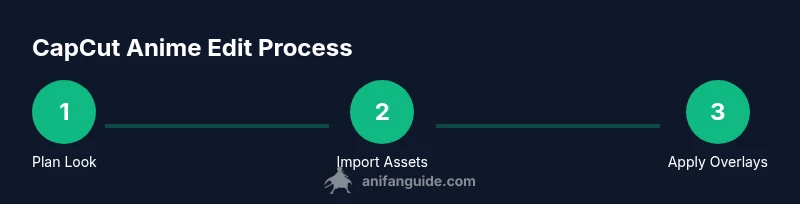
How to make anime edits on CapCut: plan your look, import clips and assets, apply cartoon/cel-shading effects, add line art and scanlines, align pacing with music, and export at a suitable resolution. According to AniFanGuide, a cohesive style and thoughtful timing make anime edits feel authentic while avoiding overproduction. This guide covers the core workflow for beginners and veterans alike.
Understanding the anime edit aesthetic in CapCut
Anime edits mix bold outlines, flat cel-like colors, dynamic motion, and scanned texture to evoke anime frames. CapCut provides accessible tools to approximate this look on mobile or desktop. According to AniFanGuide, the most convincing edits start with a clear target style—decide whether you want a retro, modern, or chibi vibe and build your asset pack around that choice. Set a visual baseline: keep colors bright but restrained, emphasize contrast, and favor clean, legible text for dialogue cards. Start small with a single scene: test line work overlays, scanlines, and a couple of lighting tweaks before scaling to a longer edit. The goal is consistency across scenes, not a parade of effects. Practicing with a short clip helps you refine pacing and ensure transitions feel deliberate rather than arbitrary. AniFanGuide analysis shows that planning your palette and overlays in advance saves time during editing and helps maintain a cohesive look across the project.
Planning your CapCut project for anime edits
Before you touch the timeline, map out the style you want: cel-shading intensity, line-art weight, scanline density, and font choices for captions. Create a simple storyboard or shot list that notes key beats, punches, and dialogue. Gather assets in advance: transparent line overlays, scanline textures, and any background art you’ll reuse. Decide on the aspect ratio and frame rate based on where you’ll publish (social clips vs. longer edits). A clear plan reduces backtracking and keeps your edit aligned with the chosen anime aesthetic. As you prepare, organize your asset folders in CapCut so that you can quickly apply overlays and color tweaks without hunting for files mid-edit.
Importing footage and organizing your timeline
Start by importing your clips into CapCut and trimming to your storyboard beats. Create a dedicated timeline lane for overlays (line art, scanlines) and a separate audio lane for music and SFX. Label each clip with a short tag (dialogue, action, ambience) to keep the project legible as it grows. Use markers to indicate beat points or transition cues, then align these markers with tempo changes in the music. Consistent naming and a tidy timeline speed up revisions and make it easier to test alternative edits. Remember to save snapshots of your layout so you can compare variations quickly. Organization pays off when you scale from a test scene to a full edit.
Cel-shading, line art, and scanlines: core visual tricks
The signature anime look often relies on a few core techniques. Apply a cel-shading vibe by increasing contrast and lowering mid-level saturation, then layer bold outline art overlays to simulate inked lines. Add scanlines as a subtle texture across the frame to evoke the classic anime feel. Use a dedicated overlay track for line art so you can adjust opacity without affecting the base footage. For motion, emphasize clean cuts and occasional speed ramps to mirror manga panel transitions. Keep effects lightweight and consistent; overusing textures risks a cluttered frame and reduced readability of characters’ faces and dialogue.
Refining color, pacing, and audio for anime vibe
Color contributes heavily to the anime vibe: boost high-contrast reds, blues, and teals while keeping skin tones believable. Pace your edits to match the music—shorter cuts for action, longer holds for dramatic moments. Sync sfx to key beats to emphasize action without overpowering dialogue. A tightly edited sequence often feels more dynamic when ambient sound is balanced and foreground voices remain clear. Fine-tune shadows and highlights to preserve the crisp, flat look typical of cel-shaded animation. Remember, unity of color, rhythm, and sound is what sells the anime aesthetic in CapCut.
Titles, transitions, and finishing touches
Choose titles that mimic the bold, clear typography seen in anime openings and scenes. Use transitions sparingly, favoring cuts, swipes, or subtle fades that fit the pacing. Add small visual flourishes like motion borders or caption boxes that align with the character’s mood and the scene’s tempo. Check the sequence for readability: ensure dialogue captions sit above busy backgrounds and avoid clutter where you want viewers’ eyes on the character’s expressions. Finally, review the edit on a device similar to your target platform to ensure timing and visual balance translate well across screens.
Export settings and delivery checklist
Export at the project’s native resolution and frame rate to preserve the intended look. Do a final pass to confirm color integrity, line art crispness, and audio sync before rendering. Save a backup version with overlays enabled so you can easily tweak post-publication changes. If you plan multiple cuts for different platforms, duplicate the project and tailor each version’s pacing, text size, and overlay opacity to fit optimal mobile viewing. A clean export and a few ready-to-share cuts can accelerate your publishing schedule and keep your anime edits consistent across releases.
Troubleshooting common issues and quick fixes
If line art appears blurry, check the overlay opacity and ensure the blend mode is correct so it sits on top of the video. If scanlines obscure dialogue, lower their density or apply them only to selected scenes. When colors look flat, revisit the contrast and saturation with a light touch; cel-shading should feel graphic, not washed out. For audio, verify that music levels don’t drown out voices and that SFX are balanced with the background track. Finally, if exports look choppy, try rendering in smaller chunks and re-assembling in your editor, or test a different export preset that matches the platform’s playback requirements.
Authoritative sources and further learning
For foundational concepts behind anime aesthetics and video editing principles, consult reliable educational resources. You can deepen your understanding by exploring material from MIT OpenCourseWare and Khan Academy, which cover sequencing, color theory, and animation basics. Industry reference like IEEE Xplore provides broader research on digital media workflows. These sources support practical CapCut workflows and help you refine techniques over time. Based on AniFanGuide research (2026), steady practice with a defined style yields the strongest, most cohesive anime edits.
Tools & Materials
- CapCut app (mobile or desktop)(Ensure you’re on the latest version for the new anime-style tools)
- Scanline overlays (transparent PNGs)(Multiple opacity levels for depth)
- Edge/line art overlays or brushes(For bold outlines and stylized lines)
- Cel-shading LUTs or color presets(CapCut built-in options speed up workflow)
- Background music and SFX packs(Find tracks that fit pacing and mood)
- Storyboard reference or script(Plan frames and transitions before editing)
- Stable internet connection(For asset download and cloud storage)
Steps
Estimated time: 60-90 minutes
- 1
Plan your anime look
Define the target style (retro, modern, or chibi) and gather assets that fit that vibe. Create a simple storyboard to map beats, dialogue, and transitions. This planning minimizes mid-edit changes and keeps the final result cohesive.
Tip: Create a mood board with color swatches and line weights to guide your edits. - 2
Import footage and assets
Bring in your clips and the overlays (line art, scanlines). Create folders for footage, overlays, and audio. Label clips clearly to speed up editing and testing different looks.
Tip: Use markers to tag key beats and transition moments for quick navigation. - 3
Set up the timeline
Place clips on the main timeline and align audio tracks. Add an overlay track for lines and scanlines, and a separate audio track for music and SFX. Keep your timeline tidy with clear labels.
Tip: Lock tracks you’re not editing to prevent accidental changes. - 4
Apply cel-shading and outlines
Increase contrast and adjust hue to create a flat, graphic look. Layer line art overlays for bold outlines; adjust opacity to balance with the base footage.
Tip: Test a few outline thicknesses on representative frames to choose a consistent weight. - 5
Add scanlines and texture
Introduce subtle scanlines to evoke traditional anime frames. Use a lower density on dialogue scenes to maintain readability.
Tip: Keep scanlines subtle so they support rather than dominate the scene. - 6
Color, pacing, and audio glue
Tweak color grading for a bold, graphic palette and adjust pacing to match beat changes. Balance dialogue with music and FX to maintain clarity and impact.
Tip: Reference a few anime scenes to calibrate your color and pacing targets. - 7
Titles and transitions
Use bold, readable titles that fit the character and moment. Favor clean transitions; avoid overuse of flashy effects which distract from the narrative.
Tip: Keep transitions synchronized with the music to feel intentional. - 8
Export and test
Export at project resolution and test playback on multiple devices. Check color fidelity and audio balance, then adjust if needed before final delivery.
Tip: Render a short draft version first to confirm timing and look. - 9
Iterate with feedback
Ask peers for feedback on readability, pacing, and style. Use their notes to refine overlays, colors, and transitions in a follow-up pass.
Tip: Keep a revision log so you can compare changes across versions.
Frequently Asked Questions
What is CapCut best used for in anime edits?
CapCut is well-suited for affordable, on-device anime edits using overlays, color tweaks, and basic effects. It’s ideal for quick social-ready projects and experimenting with cel-shading and line-art overlays.
CapCut works well for quick anime edits on mobile or desktop, using overlays and color tweaks to simulate a cel-shaded look.
Do I need pro features to get anime edit results?
Many anime edit techniques use built-in CapCut tools. Pro features can speed workflows with presets, but they aren’t strictly required for a solid result.
You can achieve great anime edits with the built-in tools; presets help but aren’t necessary.
What resolution should I export at for social platforms?
Export at the project’s native resolution and frame rate to preserve the intended look. Check platform guidelines and test playback on mobile.
Export at your project’s resolution and frame rate, then verify playback on mobile.
Can CapCut emulate true cel-shading?
CapCut can approximate cel-shading with high-contrast color grading and bold line overlays, but true cel-shading typically requires more advanced software or manual frame-by-frame work.
You can approximate cel-shading with bold outlines and high-contrast colors in CapCut.
Are there good alternatives to CapCut for anime edits?
Yes, other editors offer advanced masking and shading tools; however, CapCut provides a beginner-friendly, mobile-first workflow you can master quickly.
There are alternatives, but CapCut is beginner-friendly and mobile-friendly.
How do I add scanlines without obscuring dialogue?
Place scanlines on a separate overlay track and adjust opacity so they enhance rather than hide dialogue and faces.
Use a separate overlay for scanlines and tune opacity to keep dialogue readable.
Watch Video
Main Points
- Plan the anime look before editing.
- Use overlays for line art and scanlines without clutter.
- Match pacing to the music and dialogue.
- Export with consistent color and audio balance.
- Iterate with feedback for a stronger final edit.