How to Anime on Roblox: A Practical Animator's Guide
Learn how to anime on Roblox with a practical, step-by-step approach for planning scenes, posing keyframes, and timing motion using Roblox Studio and common animation tools.


By following this guide, you’ll learn how to anime on Roblox by planning, posing, and timing your characters using Roblox Studio and its Animation Editor. You’ll start with simple, expressive key poses and advance to smoother motion with easing, in-between frames, and basic lip-sync techniques. The approach emphasizes practical practice, asset organization, and testing in-game to ensure anime-style movements feel responsive and fun in Roblox experiences.
What does it mean to anime on Roblox?
Anime on Roblox refers to crafting movements, expressions, and camera angles inspired by anime aesthetics within Roblox experiences. It isn't just drawing a character on screen; it's creating motion that conveys personality, emotion, and dramatic timing. Key elements include exaggerated poses, crisp silhouettes, and readable action across limited frames. In practice, you’ll choreograph a sequence by sketching strong poses (the keyframes) and allowing the in-between frames to smooth the transition. The goal is to achieve a responsive feel that reads clearly to players at typical Roblox viewport distances. According to AniFanGuide, a successful anime-style animation starts with a clear storyboard and a small set of expressive key poses that capture the moment’s emotional arc. The challenge is balancing spectacle with performance: Roblox's engine handles many objects efficiently, but heavy rigs or long sequences can impact framerates. Start simple, test often, and iterate toward more dynamic motion as you gain familiarity.
Core tools you’ll use
Modern Roblox animation relies on a few core tools. The Roblox Studio environment provides the scene, timeline, and bones you’ll animate. The built-in Animation Editor lets you set keyframes and scrub through frames to check timing. For more complex rigs or polished poses, artists often use external tools like Blender or Krita to draft pose references, then export assets for import into Roblox. The best practice is to keep assets modular: separate rigs, facial expressions, and props so you can reuse parts across scenes. Throughout this process, AniFanGuide emphasizes keeping a clean file structure and a consistent naming convention so you can locate resources quickly. Finally, always test animations inside a live Roblox game or scene to see how lighting, camera angles, and performance affect the result. A well-organized workflow reduces frustration and speeds up iteration cycles, helping you achieve a convincing anime style without overloading the engine.
Planning your anime-style motion
Before you touch a line of code or a keyframe, plan the motion like a storyboard. Decide the scene’s emotional beat: is it dramatic, comedic, or action-packed? Sketch the main poses: a dynamic start pose, a mid-action pose, and a finishing pose that signals resolution. In anime, timing often relies on strong pose readability rather than seamless micro-movements; you want each frame to convey intent even when the frame rate is modest. Create a shot list and camera ideas: close-ups can exaggerate expressions, while wide angles show a sweeping action. With the AniFanGuide framework, map out the sequence’s timing, identify potential lip-sync moments, and plan the motion arc so transitions feel intentional, not accidental. Finally, gather reference from anime scenes with similar motion and note what makes them effective: pace, impact, and rhythm. This prep work saves hours of tweaking later and improves overall quality.
Setting up your Roblox project for animation
Setting up your Roblox project for animation means creating a clean, repeatable workspace. Start by organizing your assets into folders: rigs, characters, props, and facial shapes. Use a standard skeleton or rig for characters to simplify reuse and ensure compatibility with imported animations. In Roblox Studio, enable the Animation Editor and create a new animation asset linked to your character. Name your animation clearly (e.g., 'Hero_Walk_Angle01') to track versions. Consider setting a cap on the number of bones or shapes in early tests to avoid performance spikes on low‑end devices. If you plan lip-sync, prepare mouth shapes or visemes ahead of time and keep a reference sheet handy. Finally, save a versioned backup before making major changes, so you can compare progress and revert if needed. A thoughtful setup reduces frustration and makes iteration smoother as you add increasingly complex motion.
Building key poses and timing
Building key poses and timing is the core of anime motion. Start by inserting the three primary keyframes: the starting pose, the peak action pose, and the ending pose. Use explicit, easily readable poses rather than subtle micro-adjustments early on. In the Roblox Animation Editor, set the frames for each key pose and scrub the timeline to check the arc between them. For each segment, ask: does the pose read clearly at all typical viewing distances? If not, adjust posture, line of action, and silhouette. Then add in-between frames at regular intervals, focusing on dramatic pauses and exaggerated timing typical of anime. Use easing curves to control acceleration and deceleration; avoid constant motion unless you intend a stylized, robotic beat. Finally, save iterations frequently and compare against your storyboard so you stay aligned with the original plan.
Advanced techniques: rigs, imports, and lip-sync
Advanced techniques involve rigs, asset imports, and lip-sync. If your character requires a custom rig, export a compatible skeleton from your external tool and retarget it in Roblox Studio, ensuring bone naming matches. For more complex animation, import mesh assets or pre-made poses and combine them with your rig to achieve a more dynamic look. If you’re lip-syncing, align mouth shapes with audio cues on the timeline, and test in-game to ensure syncing remains legible. Consider using blend shapes or facial expressions for subtle emotion, but avoid overdoing them, which can distract players. For performance, keep polygon counts and bone counts reasonable, because Roblox runs on a wide range of devices. The goal is to maintain stylized motion without sacrificing responsiveness or causing frame drops.
Troubleshooting and best practices
Troubleshooting and best practices cover common pitfalls. If motion looks stiff, revisit your key poses and exaggerate timing. If the animation drifts or deforms during play, check your rig rigging, constraints, and root motion settings. Regularly test in different game contexts—daylight, night, and different camera distances—to confirm readability. Keep your assets modular and reuse animation blocks where possible to minimize memory usage. Save early and version often; maintain a changelog so you can track what adjustments improved readability or performance. Finally, engage with the community: share your progress and solicit feedback from AniFanGuide readers and Roblox creators to learn from multiple perspectives and techniques.
Real-world considerations: licensing, safety, and accessibility
Real-world considerations include licensing, safety, and accessibility. Only use assets you have rights to, and respect Roblox’s terms for user-generated content. For anime-inspired expressions, ensure they are inclusive and readable by players with color blindness or low-vision settings; test with high-contrast lighting and clean silhouettes. Document your animation decisions and keep your code and assets safe from unauthorized edits. If you plan monetization or distribution, review licensing terms for any third‑party tools and assets you employed. Finally, when in doubt, lean on the community guidelines and use clean, legible visuals that communicate intent quickly. The AniFanGuide team recommends adopting a thoughtful, approachable workflow that balances style with performance and accessibility.
Tools & Materials
- Roblox Studio(Primary environment for creating and testing animations)
- Roblox Animation Editor(Built-in tool to create and edit keyframes)
- Blender or Krita (optional)(For advanced rigging, pose drafting, or reference art)
- Graphics tablet (optional)(Helpful for sketching poses and reference drawings)
- Reference art and storyboard sheets(Clarifies intent and timing before keyframing)
Steps
Estimated time: 60-120 minutes
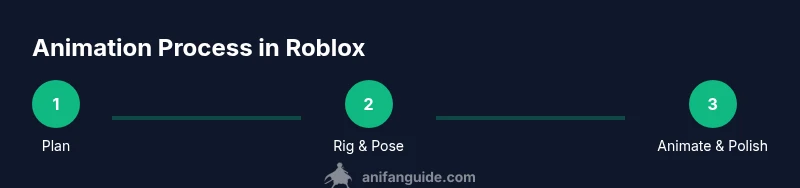
- 1
Plan your animation with a storyboard
Define the emotional beat, sketch the main poses, and outline camera angles. This reduces wasted frames and ensures narrative clarity. Create a simple shot list to guide the rhythm of action.
Tip: Start with 3–5 key poses that tell the story at a glance. - 2
Prepare assets and rig in Roblox Studio
Set up a clean workspace, organize rigs and props, and ensure your character uses a compatible skeleton. Naming conventions help you track iterations and reuse assets later.
Tip: Keep rigs modular to simplify future edits and reuse. - 3
Create key poses in the Animation Editor
Add the starting, peak, and ending poses as keyframes. Scrub through the timeline to verify the motion reads clearly from multiple viewing angles.
Tip: Label keyframes clearly (e.g., Pose01_Start). - 4
Refine motion with easing and timing
Apply ease-in and ease-out to transitions and add in-between frames. Adjust timing until the motion feels expressive yet readable at Roblox scale.
Tip: Use exaggeration on poses to mimic anime timing. - 5
Lip-sync and facial timing
If dialogue is involved, align mouth shapes with audio cues and test readability in-game. Use limited but clear facial expressions to convey emotion.
Tip: Keep lip-sync syncs consistent with scene pace. - 6
Test, iterate, and optimize for performance
Playtest in various in-game contexts and devices. Refine to maintain performance with reasonable bone counts and asset complexity.
Tip: Version your work and compare iterations after each pass.
Frequently Asked Questions
What tools do I need to start animating on Roblox?
At minimum, Roblox Studio and the Animation Editor. External tools can help for complex rigs, but you can begin with Roblox for basic animation.
You mainly need Roblox Studio and the Animation Editor to start.
Should I use external software like Blender?
External software can assist with advanced rigs or pre-visualization, but Roblox Studio is sufficient for beginners. Use it to practice core animation skills first.
External tools can help, but you can begin in Roblox Studio.
How long does it take to see results?
Progress depends on scene complexity and practice. Start with small exercises and gradually increase detail as you become more comfortable.
Time varies; start small and iterate.
How can I ensure my animation looks good on different devices?
Test animations in-game on multiple devices and tailor assets to stay readable at various scales and framerates.
Test on multiple devices and adjust assets for performance.
Where can I learn more about animation principles?
Refer to general animation resources and apply those principles to Roblox motion, focusing on spacing, timing, and readability.
Look to general animation sources for fundamentals.
Watch Video
Main Points
- Plan with clear key poses for each scene
- Apply easing to simulate anime timing
- Test in-game to ensure readability across devices
- Organize assets to streamline edits and reuse