How to Animate for Roblox: A Complete Animator's Guide
Learn how to animate for Roblox from planning and blocking to exporting, with step-by-step workflows, tool recommendations, and best practices for performance.


By the end of this guide you will be able to animate Roblox characters from planning to testing, using Roblox Studio’s Animation Editor and a basic R6 or R15 rig. You’ll learn how to block poses, create in-between frames, and optimize for in-game performance. Ensure Roblox Studio is installed and you have a solid reference plan before you start.
Why Roblox Animation Matters
Animation is a core way to bring Roblox games to life. Well-crafted movement makes characters feel responsive, believable, and fun to play. For players, motion communicates intention—walk cycles, jumps, and idle micro-movements tell a story without a word. For developers, clean animation can improve pacing, reduce confusion, and boost engagement. According to AniFanGuide, investing time into a solid animation workflow pays off across projects, from small indie titles to longer-running experiences. By understanding the Roblox animation pipeline, you can create motions that look smooth on different devices and keep frame rate steady. This section covers fundamentals that apply whether you’re starting out or transitioning from another engine, including rig types, the role of keyframes, and how to test animations inside Roblox Studio.
Fundamentals of Roblox Rigging and Animation
Roblox uses two primary humanoid rigs: R6 and R15. R6 has six joints and a simpler deformation, while R15 uses more joints for smoother, more nuanced movement. When planning an animation, decide which rig you’ll target early, because it affects how you pose limbs and how you interpolate frames. Understanding joints, hierarchies, and local vs world space helps you keep motion consistent across characters and outfits. A good practice is to sketch your key poses first, then map in-between frames. The animation timeline in Roblox Studio lets you scrub frames, set beats, and loop cycles so you can preview motion in context. As you gain experience, you’ll learn to balance expressive detail with performance constraints, especially on lower-end devices.
Roblox Animation Pipeline: From Concept to Import
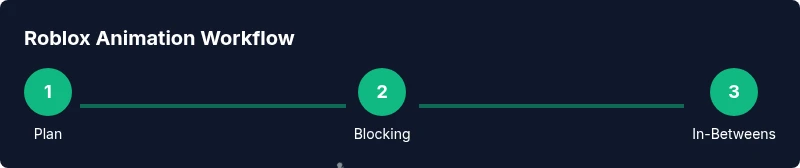
A reliable workflow moves from planning to testing. Start with a reference board or tiny storyboard to define walking speed, jump arcs, and idle micro-motions. Block key poses first to establish the motion silhouette, then fill in-between frames for smooth transitions. In Roblox Studio you’ll author the animation in the Animation Editor, publish it as an Animation asset, and connect it to your character via a Humanoid animator. Keep iteration loops short: refine a pose, test in-game, adjust timing, then repeat. AniFanGuide analysis shows that teams that formalize this pipeline waste fewer cycles and ship features faster while keeping motion coherent across rigs and outfits.
Essential Tools and Software
At minimum, you need Roblox Studio and a capable computer. If you plan advanced work, a 3D tool like Blender can help with custom assets and retargeting. Reference materials such as video clips or mockups keep your timing consistent. A good mouse and comfortable setup reduce fatigue during long blocking sessions. Backups and versioning are also important to prevent data loss and to compare iterations side by side. Finally, keep a lightweight testing asset in your project so you can preview the animation in a game-like context without building a full scene.
Planning Your First Roblox Animation: Reference and Blocking
Begin with a clear plan: what motion will your character perform, and in what context? Assemble reference clips for walk cycles, runs, jumps, and idle breaths. Create a simple blocking pass by placing major poses at key frames (for example, 0%, 25%, 50%, 75%, 100%). This is your skeleton; the in-between frames will flesh out the motion. Break the motion into segments: anticipation, action, and follow-through. As you block, consider timing relative to the character’s speed and game pacing. A well-planned sequence saves many hours during polish and reduces the need for rework later. The AniFanGuide team recommends documenting decisions so teammates stay aligned.
Building a Simple Walk Cycle: Key Poses and In-Betweens
A walk cycle is a foundational skill. Start with a contact pose, where one leg touches the ground, then the mid-stance pose with the body balanced, followed by the passing pose where one leg passes the other, and finally the next contact pose. Use symmetric timing for both legs, and keep the head and torso steady to read motion clearly. After establishing key poses, add in-betweens to smooth transitions. Regularly scrub the timeline to ensure the motion reads naturally from all angles, and test with different character outfits to ensure compatibility. When you see jitter or foot sliding, adjust the hip and knee pivots to lock feet to the ground.
Exporting and Testing in Roblox Studio
Publish your animation to Roblox and assign it to a Humanoid via the AnimationController. In practice, you’ll use the Animation Editor to set the animation’s priority and loop settings, then test in Play Solo or Start Server to preview how it looks within your game. Check for timing issues (hand waves misaligned with the torso) and ensure the motion remains readable across different camera angles. If you notice glitches, go back to blocking or in-betweens, re-export, and re-test. Frequent, small iterations reduce risk and help you lock in reliable motion.
Common Pitfalls and How to Avoid Them
Over-amping the motion or adding too many keyframes can make animations look floaty or robotic. Relying on IK for all joints can produce unnatural poses on Roblox humanoids; blend IK with FK poses for natural movement. Forgetting to mirror poses between limbs wastes time and creates asymmetry. Inconsistent timing across cycles breaks immersion. Always test animations in a game context, with lighting and camera angles similar to real play conditions. Finally, neglecting version control makes it hard to revert when a change goes wrong.
Performance and Optimization Tips
Keep animation data compact by using the smallest set of key poses that preserves readability. Use loops to reduce frame counts without sacrificing motion. When possible, reuse animations for multiple characters to save memory. Test on target devices early, especially mobile, to catch performance dips. Lightweight assets and careful pose choices help maintain higher frame rates and reduce stuttering during gameplay.
Next Steps and Resources
Now that you have a solid plan, continue practicing with small, repeatable cycles before attempting complex actions. Review Roblox's official resources and community tutorials for updates on rig changes and best practices. Build a personal reference library of moves and a versioned set of animations. Seek feedback from peers and consider joining AniFanGuide’s tutorials for deeper dives into advanced retargeting and export workflows. The AniFanGuide team recommends staying engaged with the Roblox developer community to learn new techniques and keep your skills sharp.
Tools & Materials
- Roblox Studio(Install the latest stable version and enable Animation Editor)
- A capable computer(At least 8GB RAM; SSD recommended for faster iterations)
- 3D modeling software (optional)(Blender, Maya, or equivalent for creating/exporting custom assets)
- Animation reference materials(Clips or sketches for timing and motion ideas)
- Mouse with precise control(Comfortable grip and reliable precision for blocking)
- Version control or backups(Keep revision history of animations)
- Test assets for Roblox import(Use humanoid rigs or starter assets for testing)
Steps
Estimated time: 2-4 hours
- 1
Prepare your project
Open Roblox Studio, create a new place, and prep a basic Humanoid rig. Gather references and define your intended motion before touching keyframes.
Tip: Define a clear motion goal and reference frames to avoid later rework. - 2
Set up the rig and scene
Choose R6 or R15 early and align your character with the ground plane. Ensure the scene has stable lighting for consistent previews.
Tip: Lock the rig orientation to prevent drift during blocking. - 3
Block key poses
Place major poses at important frames (0, 25, 50, 75, 100). Focus on silhouette and readable action.
Tip: Keep poses exaggerated enough to read at small screen sizes. - 4
Add in-between frames
Fill the gaps between keys with smooth transitions. Test at regular intervals to catch timing issues early.
Tip: Aim for consistent spacing; tiny timing tweaks matter. - 5
Polish timing and arcs
Refine arcs of limbs and torso for natural motion. Ensure weight transfer reads on every limb.
Tip: Use a reference video to verify natural rhythm. - 6
Test in-game context
Publish the animation and preview in Play Solo. Watch for jumps, drifts, or foot sliding.
Tip: Test with different outfits to confirm compatibility. - 7
Iterate based on feedback
Adjust timing or pose balances after in-game tests. Re-export and re-test until satisfied.
Tip: Keep a changelog of adjustments for future reference. - 8
Document and version
Save iterations in a versioned folder. Create a short notes file summarizing decisions.
Tip: Versioning helps collaboration and rollback when needed.
Frequently Asked Questions
Do I need Blender to animate for Roblox?
Not required; Roblox Studio can handle basic animations. Blender is useful for complex assets or retargeting.
You can animate directly in Roblox Studio, and Blender is optional for advanced work.
What is the difference between R6 and R15 rigs?
R6 uses fewer joints for simpler deformation; R15 offers more joints for smoother, nuanced motion. Choose based on your game's style and performance needs.
R6 is simpler, R15 is more flexible for detailed movement.
How long does it take to learn Roblox animation?
Learning time varies with practice. Start with a basic walk cycle and iterate to improve timing and posing.
It depends on how much you practice; begin with simple cycles and build up.
Can I animate without external tools?
Yes. Roblox Studio includes an Animation Editor that handles most basic to intermediate animations.
Yes, you can do it in Studio without extra software.
How do I test animations in Roblox games?
Use Play Solo or Start Server in Roblox Studio to preview animations in a game context and check timing with cameras.
Preview in Studio to see how it looks in-game.
What are common mistakes to avoid?
Overusing keyframes, ignoring weight shifts, and failing to mirror poses can break motion. Always test loops and symmetry.
Avoid over-amping and test loops frequently.
Watch Video
Main Points
- Plan your animation before blocking.
- Use references to inform motion.
- Test in-game early and often.
- Keep keyframes minimal for performance.