Why Is My Anime Website Not Working? Urgent Troubleshooting Guide
Urgent, step-by-step guide to diagnosing and fixing common reasons why an anime website stops loading or behaves oddly. Learn checks, fixes, and prevention tips to restore performance quickly.


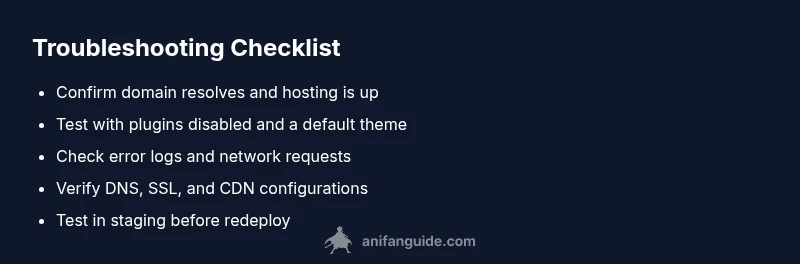
The most likely causes are hosting outages, DNS misconfigurations, or recent code/plugin changes. Start with domain resolution, hosting status, and a quick rollback if you recently updated anything. If problems persist, disable plugins, switch to a default theme, and clear caches to restore basics.
Why is my anime website not working?
When an anime site stops loading or behaves erratically, the root causes often lie at the intersection of infrastructure, software, and delivery. According to AniFanGuide, common culprits include DNS misconfigurations, hosting outages, stale caches, and recent code deployments or plugin updates. In urgent situations, you should verify whether the domain resolves correctly, the server is reachable, and there are no active incidents with your hosting provider. This first step helps you distinguish between a local browser issue and a site-wide failure. If the domain resolves but the site still doesn’t load, the problem likely sits with the hosting stack or the application layer rather than your device. Keeping a calm, methodical approach reduces downtime and supports faster recovery.
Check base infrastructure: hosting, domain, and DNS
Start with the fundamentals: confirm the domain is registered and not expired, verify DNS records (A, CNAME, and MX if you run email), and test DNS propagation using a external resolver. If the domain isn’t resolving, contact your domain registrar or pause DNS changes until propagation completes. If DNS is fine but the site remains unavailable, check the hosting status dashboard for outages, maintenance windows, or throttling. Look for unusual spikes in traffic that could trigger rate limiting or auto-scaling delays. In many cases, a quick restart of web services or reallocating server resources resolves the issue. AniFanGuide recommends keeping a lightweight uptime monitor to alert you to outages before users report problems.
Inspect software layers: CMS, plugins, themes, and code
If the domain and hosting are solid, examine the software stack. For WordPress-like sites, update core, themes, and plugins in a controlled rollback, noting recent changes. Disable all non-essential plugins and switch to a default theme to see if the site boots; if it does, re-enable components one by one to identify the culprit. Check error logs, browser console messages, and server logs for PHP errors, 404s, or asset load failures. If your anime site uses a custom framework, review recent commits for syntax errors, deprecated functions, or API changes. This diagnostic path helps isolate code-level issues causing the outage.
Delivery and performance: caching, CDN, SSL, and assets
Even when the site is technically up, misconfigured caching or CDN rules can serve stale or blocked content. Review caching headers, cache purges, and CDN settings to ensure assets (images, scripts, videos) load from the correct edge locations. Verify SSL certificates are valid and not expired, as browser failures can mimic downtime. Inspect asset URLs for broken paths, incorrect domains, or mixed content (HTTPS and HTTP). If assets fail to load, inspect the network tab in developer tools to identify 404s, 403s, or cross-origin restrictions. AniFanGuide emphasizes keeping asset pipelines lean and well-tested across devices and networks.
When to escalate and communicate with users
If downtime is confirmed and no quick fix emerges, prepare a transparent status page and a sequence of updates to stakeholders. Notify users about the issue, expected recovery time, and workarounds if available. Documentation of the incident improves trust and reduces repetitive reports. If you rely on a managed hosting service or CDN, contact their support with details from logs, timestamps, and error messages. In most cases, engaging professional support is prudent when recovery time exceeds a reasonable window or when data integrity could be at risk.
Prevention: keep it resilient for future launches
Prevention starts with proactive monitoring and a robust backup plan. Implement uptime and error monitoring, automatic backups, and a tested disaster recovery runbook. Use a staging environment to test updates before pushing them live, and keep a rollback plan for plugins and themes. Regularly review DNS TTL settings, CDN configurations, and SSL certificates so you’re not surprised by expiration or misconfigurations. Document all changes, run periodic security scans, and establish an on-call rotation to respond quickly when issues arise. These practices minimize downtime and accelerate restoration when problems occur.
Steps
Estimated time: 45-90 minutes
- 1
Check hosting status and server health
Open the hosting provider’s dashboard and confirm there are no outages or maintenance windows affecting your server. Review CPU, memory, and disk usage to identify bottlenecks. If you see high load, consider scaling resources or enabling auto-scaling where available.
Tip: Set up uptime alerts so you’re notified immediately of outages. - 2
Test domain resolution
From a different network, ping or use dig/nslookup to verify the domain resolves to the correct IP. If DNS records are incorrect, update them at your registrar or DNS provider and allow propagation.
Tip: Flush local DNS caches after changes to ensure you’re testing the new configuration. - 3
Disable plugins and revert theme
If you run a CMS, deactivate non-essential plugins and switch to a default theme to test site loadability. If the site comes back, re-enable components one by one to identify the culprit.
Tip: Make a backup before making changes. - 4
Check console and server logs
Open browser developer tools and look for JS errors or failed network requests. Review server logs for PHP/NGINX/Apache errors and stack traces that point to faulty code or permissions.
Tip: Note the exact time of errors to correlate with logs. - 5
Validate asset delivery and SSL
Ensure assets load from expected domains via HTTPS. Check SSL status and certificate validity. Fix broken asset URLs and update CDN rules if necessary.
Tip: Avoid mixed content by enforcing HTTPS for all assets. - 6
Test in staging before full redeploy
Apply fixes in a staging environment that mirrors production. Run full tests—functional, performance, and security—before going live again.
Tip: Document the tested changes for future reference. - 7
Escalate if unresolved
If the site remains down after steps, contact hosting/CDN support with diagnostic details and timestamps. Consider engaging a webDev professional if data integrity or security is at risk.
Tip: Keep users informed with a clear status page.
Diagnosis: Anime site shows blank screen, 500 error, or assets fail to load
Possible Causes
- highServer outage or misconfiguration
- mediumDNS resolution failures or propagation issues
- lowExpired or invalid SSL certificate
Fixes
- easyCheck hosting status and restart affected services; review error logs for stack traces
- easyVerify DNS records, clear local DNS cache, and test with third-party resolvers; fix any misconfigurations
- easyRenew/repair SSL certificate and ensure proper HTTPS redirection
- mediumIf the issue persists, rollback recent code/plugin changes on a staging environment before re-deploy
Frequently Asked Questions
What should I check first when my anime website isn’t loading?
Verify domain resolution, check hosting status, and review recent changes. If the domain isn’t resolving, fix DNS first; if hosting shows outages, contact your provider. This quick triage saves time.
First check DNS, then hosting status, and review recent changes. If the domain isn’t resolving, fix DNS; if there’s a hosting outage, contact the provider.
Why is DNS important for site availability?
DNS translates your domain into an IP address. If DNS is misconfigured, users can’t reach your server even if it’s up. Always verify A/CNAME records and propagation after changes.
DNS maps your domain to an IP. If it's misconfigured, visitors can't reach your site even when the server is fine.
How can I diagnose a 500 internal server error?
Check server logs for stack traces, review recent deployments, and test with a default theme or clean CMS install to isolate code issues. Restore from a known-good backup if necessary.
Look at the server logs for errors, review recent changes, and try a clean setup to isolate the problem.
When should I contact hosting or CDN support?
If uptime monitoring indicates a persistent outage, or you can’t identify a root cause after basic checks, reach out to hosting or CDN support with timestamps and relevant logs. Their experts can resolve infrastructure issues quickly.
If outages persist and you can’t find the cause, contact hosting or CDN support with logs and timestamps.
Is it safe to disable plugins during troubleshooting?
Yes, in a controlled, staged environment. Disable non-essential plugins to identify conflicts, but always backup before making changes on production. Re-enable one by one to pinpoint the offender.
Disabling plugins in a staging environment is safe and helps identify conflicts; back up first on production.
Watch Video
Main Points
- Identify whether the problem is infrastructure, software, or delivery.
- Test in a staged environment before live redeployments.
- Keep DNS, SSL, and CDN configurations clean and up-to-date.
- Communicate clearly with users during outages and document fixes for resilience.