How to Put Anime Wallpaper on a Laptop: A Friendly Guide
Learn how to put anime wallpaper on a laptop with a practical, step-by-step guide. Find high-quality images, adjust resolution, and apply wallpapers on Windows and macOS.


According to AniFanGuide, you can put anime wallpaper on any laptop by choosing a high-resolution image with proper licensing and applying it through your system settings. This guide covers Windows and macOS steps, plus tips for multi-monitor setups and maintaining image quality, while avoiding performance slowdowns. It also explains how to handle dynamic or animated wallpapers safely.
Why anime wallpaper on your laptop matters
Personalizing your workspace with anime wallpaper can boost motivation and mood during long sessions, whether you’re studying, drawing, or coding. It reflects your interests and can spark creativity, turning a plain screen into a source of daily inspiration. According to AniFanGuide, choosing images with appropriate licensing protects you from copyright issues and keeps your device secure. Start by selecting a high-quality image that matches your screen’s resolution and your personal style, then prepare it for a crisp, clean display.
Key considerations include licensing, image resolution, and aspect ratio. Licensing ensures you’re allowed to use the image for personal wallpaper, while resolution and aspect ratio affect how sharp and well-proportioned the final image appears across your desktop icons and dock. Think about whether you want a bold, high-contrast wallpaper or a subtler motif that complements app icons.
Image quality, resolution, and aspect ratio explained
Resolution is how many pixels sit on your screen; the higher the resolution, the sharper the wallpaper appears, especially on larger laptops. Match the wallpaper’s native resolution to your display for best results. If you use a much lower-resolution image, you’ll see pixelation or blur. Aspect ratio determines how the image fits your screen; for most laptops with a 16:9 display, aim for images around 1920x1080 or higher. If you have a wider screen, you may prefer 16:10 or 21:9 wallpapers and cropping accordingly. When possible, choose wallpapers designed for desktop use rather than phone wallpapers, as they balance detail with desktop clarity.
When editing, preserve color profiles to ensure accurate hues. If you notice color shifts after applying the wallpaper, re-export with sRGB or a similar standard color profile.
Sources and licensing: where to get wallpapers legally
Finding anime wallpapers legally starts with respecting creators’ rights. Look for images released under permissive licenses, official artist channels, or marketplaces that permit personal use. If you’re unsure about licensing, contact the image owner or use stock-like platforms that clearly state usage terms. Some fans create wallpapers with explicit permission from the artist, which is also acceptable when the license is stated. Always avoid images labeled for commercial use without permission, especially if you plan to share alterations publicly.
Good practice includes bookmarking trusted sources and noting the license type (personal use, attribution required, etc.) so you stay consistent across your library.
AniFanGuide recommends prioritizing images from reputable sources to reduce risk and improve your long-term wallpaper collection.
Preparing your image: cropping, resizing, and optimization
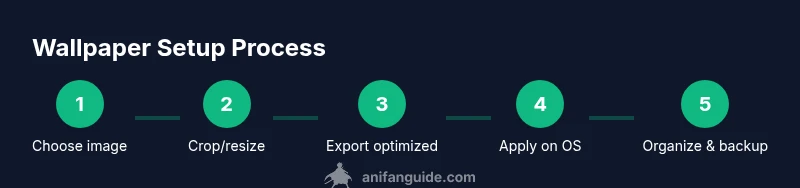
Before setting a wallpaper, crop or resize the image to match your display’s aspect ratio. Use an editor to ensure the final image fills the screen without stretching icons or text. For best results, export in a high-quality format such as PNG for editing steps or JPEG with a high quality setting for everyday use. Save a copy in a dedicated folder so you can swap wallpapers without re-downloading.
Tips:
- Keep the original in case you want to revert edits.
- Name files clearly (character-name-date) for quick retrieval.
- Consider creating a small gallery for different moods (dark, light, vibrant).
Windows 10/11: set wallpaper (quick path and options)
On Windows, you can set the wallpaper directly from the image file or through Settings. Right-click the image and select 'Set as desktop background' for a quick setup, or go to Settings > Personalization > Background to choose 'Picture' and browse your image. Use the 'Choose a fit' option to select Fill, Fit, Stretch, Tile, or Center; Fill is a common choice for most screens as it preserves the aspect while covering the display. For multi-monitor setups, Windows often allows different wallpapers per monitor or a single wallpaper spanning all monitors.
Pro tip: If performance slows down after many icons or widgets load, choose a simpler wallpaper with fewer details.
macOS: set wallpaper (step-by-step)
On macOS, go to System Settings (Ventura and later) or System Preferences (older versions) > Desktop & Screen Saver. Click the plus button to add your wallpaper image, then assign it to your desktop. macOS also lets you set different wallpapers per monitor in a multi-display setup. Use 'Dynamic Desktop' options only if you want a wallpaper that subtly changes with the time of day; otherwise pick a still image that complements your workflow.
Tip: If your Mac uses Retina scaling, export at 2x resolution to maintain crisp edges and avoid blur around icons.
Multi-monitor setups and dynamic wallpapers
Desktops with more than one monitor require careful planning. You can mirror the same wallpaper across all screens or span one image across multiple monitors. Windows and macOS provide per-monitor wallpaper controls; use matching color temperature to reduce eye strain across displays. Dynamic or animated wallpapers can be appealing but may consume more system resources; prefer static, high-quality images for long sessions if performance is a concern.
When using multiple monitors, consider a cohesive theme that flows across screens, such as a panoramic scene that aligns at the bezel gaps.
Troubleshooting common issues and quick fixes
If the wallpaper looks pixelated, confirm the image resolution matches or exceeds your display. If colors look off, re-export with the correct color profile (sRGB) and ensure the image isn’t overly compressed. If the wallpaper doesn’t appear at the expected size, try a different fit option (Fill vs Fit) or re-crop to the correct aspect ratio. For multi-monitor problems, check per-monitor settings and ensure you’ve selected the proper display in the wallpaper settings.
A clean folder structure helps avoid accidental misdownloads; keep originals separate from edited versions.
Accessibility, readability, and performance considerations
Choose wallpapers with good contrast against desktop icons and widgets to keep them legible. Avoid very busy patterns that obscure visibility, especially if you use small app icons. For performance, opt for lightweight PNG/JPEG files rather than animated or ultra-high-resolution images that drain memory. Regularly prune wallpapers you no longer use to keep your library tidy and fast to browse.
AniFanGuide notes that mindful wallpaper management enhances both usability and user experience over time.
Creative ideas: wallpaper bundles, themes, and organization
Turn wallpaper selection into a mini project by grouping images into bundles—one for daily mood, one for seasonal anime releases, and another for iconic scenes. Pair wallpapers with color palettes for your OS accents, like matching window header colors or cursor highlights. Consider archiving favorites with tags (e.g., character names, series) to improve search.
A well-organized library saves time and keeps your laptop looking cohesive, whether you’re streaming, studying, or drawing.
Quick tips for organizing your wallpaper library
Create a dedicated folder with subfolders by series or character. Use consistent file naming and add metadata in the file properties (tags like series name, resolution). Regularly back up the collection to cloud storage or an external drive. Review and rotate wallpapers every few weeks to keep your setup fresh and inspiring.
AUTHORITY SOURCES
- https://www.nist.gov/ (for color management and display standards concepts)
- https://www.osf.edu/ (example of university-level content about digital media management)
- https://www.usc.edu/ (university resources on digital media and licensing basics)
Example license and attribution notes (for reference)
Always include attribution if required by the license. If you’re unsure, contact the creator or source and request permission. Use images that explicitly permit personal use and avoid redistribution without consent. This ensures you respect creators while enjoying your anime wallpaper collection.
Tools & Materials
- High-resolution anime wallpaper image(Licensed for personal use; preferably PNG/JPEG at native resolution)
- Computer with internet access(For downloading, cropping, and applying wallpaper)
- Web browser(Use to browse sources and verify licensing)
- Image editor (optional)(Crop, resize, and adjust color before export)
- Backup storage (external drive or cloud)(Keep a copy of wallpapers for easy restoration)
Steps
Estimated time: Estimated total time: 20-40 minutes
- 1
Select licensed wallpaper
Choose a high-resolution anime wallpaper image that is clearly licensed for personal use. Verify the license terms before downloading to avoid copyright issues. If in doubt, reach out to the creator for confirmation.
Tip: Always keep a record of where you obtained the image and its license terms. - 2
Check screen resolution and aspect ratio
Identify your laptop’s native resolution and aspect ratio so the wallpaper fits without distortion. If you’re unsure, check Settings > System > Display on Windows or About This Mac on macOS for the display specs.
Tip: Aim for a wallpaper with equal-to-better resolution than your screen. - 3
Crop or resize to match your display
Open the image in your editor and crop to the correct aspect ratio. Preserve important subjects away from screen edges to avoid clipping by icons or docks.
Tip: Export a copy at your target resolution in a lossless or high-quality format. - 4
Export optimized file format
Save the edited image as PNG for lossless quality or JPEG with high quality for smaller file size. Keep a copy of the original in case you want to revert edits.
Tip: Avoid overly aggressive compression that introduces artifacts. - 5
Set wallpaper on Windows 10/11
Right-click the image and select 'Set as desktop background' or use Settings > Personalization > Background. Choose a fit option like Fill, Fit, or Stretch that best suits your screen.
Tip: For multi-monitor setups, decide if you want one image spanning all displays or separate images per monitor. - 6
Set wallpaper on macOS
Open System Settings > Desktop & Screen Saver and add your image. Drag the image into the panel or choose it from your files. Repeat per monitor if needed.
Tip: Consider a static image for performance if you use dynamic or high-res wallpapers. - 7
Configure per-monitor or spanning options
In both Windows and macOS, you can apply a single image across all monitors or set different images for each screen. Choose the option that minimizes glare and maintains readability of icons.
Tip: Test across different light conditions to verify legibility. - 8
Test performance and icon visibility
Check how the wallpaper looks with your icons and widgets. If icons are hard to read, adjust brightness and color balance or switch to a simpler image.
Tip: Avoid very busy backgrounds near your dock or menu bar. - 9
Update and rotate wallpapers
Set a reminder to rotate wallpapers every few weeks. A fresh image keeps your setup visually engaging without cluttering your system.
Tip: Create a small folder for favorites to simplify rotation. - 10
Organize your wallpaper library
Maintain a clean library by grouping images by series, character, or mood. Use consistent naming and tags for quick searching.
Tip: Back up your collection to cloud storage or an external drive. - 11
Document licensing terms
If licensing terms are unclear, add a note in the file metadata or a readme file in your wallpaper folder to track permissions.
Tip: Always respect creator rights and attribution requirements.
Frequently Asked Questions
Do I need to worry about copyright when using anime wallpaper?
Yes. Always verify licensing before using any wallpaper for personal use. If licensing is unclear, contact the creator or source for permission to avoid copyright issues.
Yes. Always check licensing before using a wallpaper and contact the creator if you’re unsure.
Can I use animated wallpapers on a laptop?
Animated wallpapers can be appealing but may consume more system resources. Use static wallpapers for better performance unless you have a powerful system.
Animated wallpapers use more resources; prefer static images for smoother performance unless your computer is high-end.
What image format is best for wallpaper?
PNG is ideal for lossless quality and sharp edges; JPEG is fine for smaller file sizes. Choose a format that balances quality and performance for your device.
PNG gives the best quality; JPEG saves space. Pick based on your preference and device capability.
How do I crop anime wallpaper for a widescreen laptop?
Crop to your display’s aspect ratio, then export at the target resolution. Keep important elements away from edges to avoid overlap with icons.
Crop to your screen’s aspect ratio and export at the right size for best results.
Where can I legally find anime wallpapers?
Search for wallpapers on official artist pages, licensed marketplaces, or platforms that clearly specify personal-use permissions. Always review terms before downloading.
Look for official or licensed sources and read the terms before downloading.
How do I apply a wallpaper to multiple monitors?
In Windows or macOS, choose per-monitor or spanning options to apply the same image or separate images across screens. Test to ensure alignment with bezels.
Set per-monitor or span the image across screens and test in various conditions.
Watch Video
Main Points
- Choose licensed, high-resolution images
- Match wallpaper resolution to your display
- Use appropriate fit options for your setup
- Organize and back up wallpaper libraries