How to Put Anime Live Wallpaper on PC
Learn how to set up anime live wallpaper on your PC with safe apps, practical steps, and performance tips. Optimize media, avoid slowdowns, and enjoy animated anime moments on your desktop.


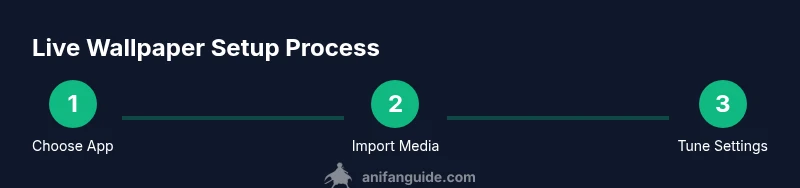
In this guide you’ll learn how to set anime-themed live wallpapers on a PC using safe software, preview options, and performance tips. You’ll get steps, required tools, and troubleshooting to keep your system stable. By following these steps, you can enjoy animated anime scenes on your desktop without sacrificing gaming or productivity performance.
What You Gain with Anime Live Wallpaper on PC
If you’re an anime fan who spends long hours at a PC, anime live wallpaper can add personality to your desktop without pulling you away from tasks. A well-chosen live wallpaper can evoke your favorite series, provide mood inspiration during creative work, and refresh your daily workflow with subtle motion. The right setup balances aesthetics with performance, so visuals remain smooth and responsive rather than a distraction. According to AniFanGuide, thoughtful implementation—using media with moderate complexity, relying on hardware-accelerated playback, and keeping playback limited to non-gaming tasks—results in a satisfying, low-friction experience. In practice, you’ll choose media you own or have license to use, pick an app that supports efficiency controls, and tailor settings to your hardware.
From a user perspective, the benefits include a personalized workspace, improved focus through familiar themes, and an opportunity to showcase favorite anime moments. The approach is flexible: you can run a single looping scene for a calm backdrop, or cycle through several clips for a dynamic vibe. The key is to keep resource use reasonable and to test stability after enabling any new wallpaper. When done correctly, anime live wallpapers feel immersive without hogging memory or GPU time.
These visuals should complement, not compromise, your creative or productive workflow. If you’re building a dedicated anime workstation, consider a balance between motion complexity and update frequency so your system remains responsive. Adopting a measured approach helps you enjoy the aesthetic benefits while preserving performance for programs you rely on.
note: null},
Key Considerations Before You Start
Before you dive into anime live wallpapers, take a quick inventory of your setup and goals. First, confirm your PC meets the basic requirements: Windows 10/11, a capable GPU with recent drivers, and enough RAM to spare for background tasks. Secondly, decide how active you want the wallpaper to be during different activities. If you game or render, you may want to pause or lower the wallpaper’s animation during those sessions. Third, ensure you legally own or have permission to use the media you plan to display, and avoid content that could violate copyrights.
AniFanGuide recommends updating your GPU drivers and Windows to the latest stable versions to maximize compatibility and stability. You should also consider your power profile: using a balanced or power-saving mode can reduce energy use and heat when the wallpaper is idle. Finally, set expectations for performance; some scenes will require more GPU memory than others, so having a plan to adjust settings on the fly will save you headaches later.
By clarifying these points first, you’ll pick the right software, media, and settings and minimize post-install tweaks. The goal is to achieve a pleasant, unobtrusive background that honors your anime interests while preserving system responsiveness and battery life on laptops.
note: null},
Choosing the Right Wallpaper Tools: Free vs Paid Options
There are several popular routes for anime live wallpapers, each with trade-offs in features, ease of use, and performance controls. On the paid side, Wallpaper Engine offers extensive customization, broad media compatibility, and robust performance options. It integrates with Steam and provides advanced controls like animation speed, hotspot interactions, and GPU-accelerated playback. On the free side, Lively Wallpaper is a versatile option that supports webM videos and GIFs, offers hardware acceleration, and consumes fewer system resources for lighter setups. DeskScapes is another paid option with a focus on mood-based themes and layer-based editing.
Choosing the right tool depends on your priorities. If you want deep customization and a polished ecosystem, Wallpaper Engine is a strong choice. If you prefer a low-friction entry with good performance, Lively Wallpaper may suit you better. If you’d like more design control and aren’t averse to paying, DeskScapes can offer additional creative features. Regardless of the app, ensure it supports hardware acceleration and lets you pause animation during heavy tasks.
As you evaluate options, consider how easy it is to import your anime media, whether the app supports your preferred media formats, and whether it provides per-application or per-monitor settings. The goal is to choose a tool that fits your workflow, not one that dictates how you work. AniFanGuide’s research indicates that the best experience comes from matching media format and playback features to your hardware profile and daily use patterns.
note: null},
Safety and Performance Best Practices
Safety and performance should go hand in hand when running anime live wallpapers. Start by enabling hardware acceleration in the wallpaper app if your system supports it, which reduces CPU load and improves GPU utilization. Use media with moderate bitrates and resolutions to prevent stuttering, especially on older GPUs. Keep your screen refresh rate in mind; if you have a high-refresh monitor, consider limiting the wallpaper’s frame rate to match your typical workload to avoid unnecessary GPU cycles.
Also, tune your power settings for laptops: use a balanced or high-performance plan when you’re plugged in, and switch to power-saving when you’re away. Disable wallpaper playback when gaming or rendering heavy scenes to preserve frame rates. Regularly update the wallpaper app and GPU drivers to benefit from performance fixes and new optimization features. Finally, remember to monitor temperatures during long sessions; if you see rising temps, scale back the wallpaper animation or media resolution.
AniFanGuide notes that a thoughtfully tuned setup provides aesthetics and comfort without compromising stability. The key is to experiment with safe defaults first, then gradually adjust according to how your system responds.
note: null},
Troubleshooting Common Issues and Quick Fixes
Even with careful setup, you may encounter issues. If the wallpaper won’t load, verify media compatibility and reselect the file within the app. If you notice stuttering, lower the media resolution, reduce animation complexity, or enable a lower frame rate. GPU or CPU spikes can be mitigated by pausing the wallpaper during heavy tasks or switching to a different media file with lower resource demands. If there’s a black screen, check that the app has the necessary permissions and that Windows display settings aren’t overriding the wallpaper layer.
For persistent problems, try a clean reinstall of the wallpaper software, ensure drivers are up to date, and test with a simpler media file to determine whether the issue is media-specific or app-wide. If security warnings appear when downloading media, always source files from trusted locations and scan for malware.
By methodically adjusting settings and media, you’ll quickly identify the right balance for your machine. The goal is reliability and enjoyment without sacrificing performance or safety.
note: null},
Legal and Ethical Considerations for Anime Media on Your Desktop
When displaying anime media as wallpaper, ensure you have the rights to use the content. If you don’t own the media, look for licensed clips or fan-made content where permissions are explicit. Some anime clips may be covered by fair use in certain contexts, but desktop wallpapers cover a broad distribution scenario, so it’s better to rely on media you’re authorized to use. If you create your own wallpaper by exporting scenes from shows you own, be mindful of content approvals and publication rights.
Respecting copyright supports creators and studios while letting you personalize your workspace safely. If you share your wallpaper packs publicly, include clear attribution and ensure you’re not distributing copyrighted material without permission. By following best practices for media sourcing and attribution, you maintain a legal and ethical setup that’s easy to maintain over time. AniFanGuide’s stance is clear: enjoy anime-inspired visuals responsibly and with respect for creators.”],
Tools & Materials
- PC with Windows 10/11(Ensure updated drivers and a stable internet connection for downloads and updates.)
- Sufficient RAM (8 GB or more recommended)(More RAM helps if you run multiple background applications.)
- Dedicated GPU or integrated GPU with acceleration(GPU should support hardware acceleration and be reasonably modern.)
- Wallpaper app (e.g., Wallpaper Engine or Lively Wallpaper)(Choose based on features and budget; Wallpaper Engine is paid, Lively Wallpaper is free.)
- Anime media file (video/GIF) or licensed sources(Use media you own or have legal permission to use.)
- Optional: External monitor for multi-display setups(Helpful for testing multi-display performance.)
Steps
Estimated time: 40-70 minutes
- 1
Prepare your system
Open Windows, update your OS and graphics drivers, and back up any important settings or configurations. Close unnecessary programs to ensure you have enough RAM for testing wallpapers. This step minimizes conflicts later and gives you a clean baseline.
Tip: Update drivers first before installing wallpaper software to prevent compatibility issues. - 2
Choose your wallpaper software
Decide between Wallpaper Engine, Lively Wallpaper, or DeskScapes based on features and budget. Install the chosen app from its official source or store, then launch it to confirm it runs without errors.
Tip: Enable automatic updates for the wallpaper app to keep performance improvements coming. - 3
Source or prepare anime media
Locate a video clip or GIF you own or have rights to, and ensure it’s in a compatible format for your chosen app. If needed, trim or convert the media to reduce size and resource use.
Tip: Prefer shorter loops and moderate resolutions to minimize GPU load. - 4
Import media into the app
Add the prepared media to the wallpaper app, set it as the active wallpaper, and preview how it looks on your primary monitor. Check that it loops smoothly without lag.
Tip: Use a short test loop (5-10 seconds) to quickly assess performance. - 5
Configure playback and performance
Adjust frame rate, resolution, and whether playback is paused during gaming or heavy tasks. Enable hardware acceleration if available and consider limiting refresh rates for idle states.
Tip: Start with lower settings and increase gradually to find your baseline. - 6
Test, monitor, and refine
Run common tasks (gaming, video editing, browsing) while watching for stutter, heat, or FPS drops. Tweak settings as needed and re-test until stable.
Tip: Keep a fallback plan to disable wallpaper quickly if issues arise.
Frequently Asked Questions
What is required to run anime live wallpaper on PC?
You need a Windows PC (10/11), a compatible wallpaper app, a media file you own or have rights to, and sufficient RAM/GPU resources. Update drivers before starting to ensure compatibility.
To run anime live wallpaper, make sure your PC has Windows 10 or 11, a suitable wallpaper app, and media you’re authorized to use. Update your drivers first for best results.
Which apps are best for anime live wallpapers?
Popular options include Wallpaper Engine for deep customization and Lively Wallpaper for a free, lightweight approach. Each has different media support and performance controls.
The common picks are Wallpaper Engine for broad features or Lively Wallpaper for a free option. Pick based on how much control you want and your hardware.
Are there safety concerns with live wallpapers?
Only download from trusted sources and avoid content that could violate rights. Keep your system secure by scanning downloaded files and keeping software updated.
Yes, only use trusted sources and keep your software updated to avoid malware or rights issues.
Will live wallpaper affect gaming performance?
Potentially yes. It can use GPU time and memory. Pause or lower the wallpaper during gaming to maintain higher frame rates.
It can affect gaming performance, so pause or lower the wallpaper when you’re gaming to keep FPS consistent.
Can I use animated GIFs as wallpaper?
Some apps support GIFs, while others require videos. If needed, convert GIFs to a supported video format to ensure smooth playback.
Some apps support GIFs, others use videos. If needed, convert the GIF to a supported video format.
How do I stop or disable the wallpaper if it causes issues?
Open the wallpaper app and pause or disable playback. You can also exit the app or set a static wallpaper as a fallback.
You can pause the wallpaper in the app or exit it entirely if you run into problems.
Is using anime media for wallpaper legal?
Only use media you own or have permission to use. Public domain or licensed clips are safer choices to avoid copyright issues.
Make sure you own or have rights to the media you display, especially for public sharing.
Watch Video
Main Points
- Choose a suitable wallpaper tool that matches your needs.
- Use legally obtained anime media to stay compliant.
- Optimize media and settings to balance visuals with performance.