How to Use Anime4K: Step-by-Step Guide
Learn how to use Anime4K to upscale anime videos with a shader. This AniFanGuide tutorial covers setup, presets, testing, and practical workflow for sharper lines and richer detail.


By the end of this guide you will know how to use Anime4K to upscale anime videos with a shader. You’ll install a compatible shader pipeline, load a test clip, apply presets, and compare outputs to the source. Before you start, ensure your PC has a capable GPU and a video player or editor that supports shaders.
Why use Anime4K
Anime fans often crave crisper lines and smoother motion without losing the original art style. Anime4K provides a shader-based approach that focuses on preserving edge clarity while reducing jaggies and rough blocks in low-to-mid resolution sources. When used carefully, it can lift the perceived quality of classic episodes and newer releases alike without requiring a full re-render or expensive AI models. According to AniFanGuide, this technique works best when you treat upscaling as a workflow—not a single magic setting. Proper setup, sensible presets, and a few verification steps are enough to avoid common artifacts.
Benefits include improved edge definition around character outlines, better visibility in action scenes, and more consistent results across scenes that vary in brightness or color depth. However, it is not a one-size-fits-all solution. Some animation styles benefit more than others, and aggressive settings can introduce halos, over-sharpening, or motion-by-motion inconsistencies. The goal is to balance sharpness with fidelity to the original direction and frame timing. In practice, you will find that small, scene-by-scene adjustments yield better overall quality than a single universal preset across an entire episode. This is a reader-friendly workflow that AniFanGuide endorses for learning and experimenting with fans of all skill levels.
What Anime4K is
Anime4K is a shader-based upscaling approach designed for anime content. Rather than training a neural network on libraries of frames, Anime4K uses edge-preserving filters and local contrast adjustments to refine lines, reduce blockiness, and smooth jagged edges while attempting to maintain the flat color and cel-style look typical of anime. Because it operates as a post-processing effect inside a compatible video pipeline, you can apply it to existing footage without re-encoding from the source. This makes it a practical tool for hobbyists, archivists, and creators who want to preserve or enhance playback quality.
The strength of Anime4K lies in its tunable presets: light, medium, and strong options let you dial the amount of sharpening, edge smoothing, and denoise to fit different art styles. The trade-off is artifact risk—over-sharpening can create halos around characters, while heavy smoothing can soften details that define facial features or textures like hair strands. The key is to test on representative clips and use a baseline comparison so you can tell when improvements come at the cost of fidelity. For most users, the best practice is to start with a mild preset on a few scenes and gradually adjust until you notice a stable balance. In the AniFanGuide community, practitioners emphasize a thoughtful, iterative approach rather than a one-click solution.
Supported platforms and prerequisites
Because Anime4K is implemented as a shader-driven process, the exact setup depends on your platform and chosen media stack. In general, Windows, macOS, and Linux users can leverage shader-enabled players or editors that support post-processing plugins. The most common workflow in the community is to pair a capable video player or lightweight editor with a shader loader, then apply Anime4K to test clips. A mid-range GPU (for example, modern integrated or discrete GPUs) is sufficient for basic upscaling, while higher-end GPUs provide more headroom for higher-quality presets and longer encodings.
Before you begin, assemble the following prerequisites: a) a clip or short demo video as your test material; b) a processor and GPU with up-to-date drivers; c) access to a compatible shader pipeline or plugin/framework; and d) sufficient disk space for the input and output files. While some users run Anime4K on laptops, long sessions can generate heat and battery draw; for consistent results, a desktop or a well-ventilated laptop is preferable. Finally, ensure you have permission to modify and test the content you work with, and consider backing up originals in case you want to revert.
Installing Anime4K and shader components
The installation path for Anime4K varies by platform and shader framework, but the general steps are similar. First, obtain the shader package from a trusted repository or the official project page. Next, install or enable the shader loader in your chosen player or editor, following the provider's instructions to point the loader at the Anime4K assets. Then, configure the layer that applies the shader to the video pipeline, choosing the Anime4K variant that matches your content style.
Once installed, load a short test clip to verify that the shader is active and that the interface exposes the typical parameters: scale of upscaling, edge sharpening strength, denoise strength, and any optional color or gamma adjustments. If you see artifacts or a mismatch with the source art, revert to a default preset and re-run the test with more conservative settings. Before moving to full movies, save a baseline render of the test clip for side-by-side comparisons. Throughout this phase, keep notes about which scenes look better with which presets, so you can tailor your approach to your library. Finally, document the exact steps you took, so you can reproduce the setup later or share it with others in your AniFanGuide circle.
Configuring presets for different content styles
Presets are the primary knobs for tuning Anime4K to your content. A light preset emphasizes subtle improvements that preserve the original cel shading, while a strong preset can reveal more detail but risks artifacts on simple animation lines. The goal is to map content style to a safe, repeatable pipeline. Start with a mild preset on a few representative scenes and compare the outputs to the source to confirm that essential shapes and colors remain intact. Then widen the test to scenes with intense action or high-contrast lighting.
As you adjust, keep a simple rubric: edges must look crisper without halos, textures should remain faithful to the original, and motion should feel as smooth as the source. If you see color shifts, revert to a gamma or color correction pass before re-testing. For episodic libraries, consider keeping a per-scene profile (e.g., early episode vs. climactic episode moments) rather than a single global setting. Document your findings: write down the presets you used, the exact values, and the frames where you observed changes. This disciplined approach, recommended by AniFanGuide, makes your results reproducible and shareable with other enthusiasts.
Running the upscale: live testing and batch processing
With a working preset in place, you can begin live testing on your clip and then scale up to batch processing. For live testing, apply the preset to a short segment, then play it back at normal speed to assess consistency across frames. Look for artifacts that appear only in certain motion, such as face textures or hair strands, and note where adjustments are needed. When you are satisfied with a segment, render a higher-quality output to compare against the original source.
Batch processing is where Anime4K shines for larger libraries. Create a small script or use your pipeline’s queue feature to apply the same preset to multiple files, and include a log for each file that captures settings and observed results. After processing, perform a side-by-side review against the originals to ensure there are no unexpected shifts in color, brightness, or motion. If you encounter failures during batch encoding, revert to a known-good preset and re-run with a smaller batch size. Consistency is the key to a reliable archive or fan project, and careful documentation helps others in your community replicate the workflow.
Troubleshooting common artifacts and quality checks
No tool is perfect, and Anime4K can introduce artifacts if settings are pushed too far. Halos around character edges are a common sign of over-sharpening; reduce edge strength and enable denoise to compensate. Ringing around fast motion can indicate excessive contrast changes; try a milder gamma correction or a lower sharpening value. If textures begin to blur, re-check the denoise parameter and consider a frame-based tweak for difficult scenes.
Quality checks are essential. Use a copy of the original as a baseline, and maintain normal-speed playback during comparisons. Look at still frames and motion sequences to judge edge clarity, color fidelity, and shadow detail. If you see color shifts or color banding, reintroduce a color-correct pass before re-testing. Finally, validate the result by checking a variety of scenes: talk-heavy dialogue, action, bright skies, and dark interiors. A well-curated test suite helps you avoid overfitting presets to a single scene, which is a common pitfall for new users highlighted in AniFanGuide discussions.
Advanced tips and workflows for best results
For power users, combining Anime4K with other non-destructive filters can yield better overall quality. Use a light denoise pass before sharpening to reduce noise artifacts that sharpeners tend to amplify. Consider a secondary color or brightness pass to preserve dynamic range in bright scenes. If you work with episodes in different resolutions, create separate profiles and switch between them as needed. Saving presets as named configurations helps you recall the exact effect you want for each series.
Performance tends to improve with sectioning: upscale a few key episodes first to calibrate your approach, then re-encode the rest in batches. If you run into performance bottlenecks, consider reducing the upscaling factor or turning off optional FX during previews. Remember that storage is also a factor—multipass encodes produce larger outputs, so plan disk usage accordingly. The AniFanGuide team recommends keeping a changelog and sharing your learnings with peers to accelerate the community’s collective understanding.
Real-world workflow example and quick start
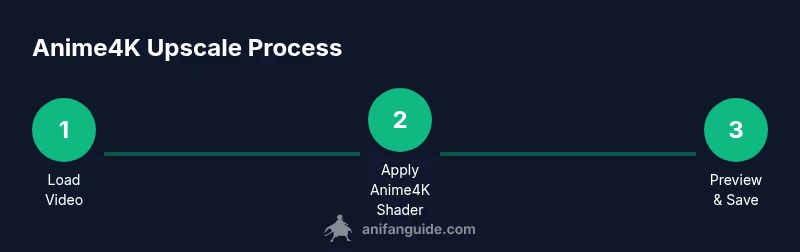
Here is a pragmatic, end-to-end example you can start today. Step 1: choose a short 15–20 second clip from a favorite series and copy it to a dedicated test folder. Step 2: install a shader loader in your preferred player, download Anime4K, and enable the mild preset. Step 3: load the clip and verify that edges look crisper with minimal halos. Step 4: render a small output for direct comparison, noting any color or motion issues. Step 5: if results look good, scale to a batch of several episodes, applying the same preset and keeping logs of settings.
The AniFanGuide team emphasizes patience and iteration. Not every scene will improve in the same way, and some episodes will require scene-specific tweaks. Keep a baseline version of the original to compare changes over time and ensure you are preserving the artistic intent. As you grow more comfortable with the process, you can experiment with stronger presets on select scenes, always recording what you changed and why. The result is a personal, reproducible workflow that you can share with fellow anime fans and creators in your AniFanGuide circle.
Tools & Materials
- A computer with a capable GPU(Dedicated GPU recommended for smoother upscaling)
- Compatible video player or editor with shader support(Examples include shader-capable players or plugins)
- Anime4K shader package(Download from official repositories; verify compatibility)
- Test video clips (various resolutions)(Prepare representative samples for evaluation)
- Storage space for inputs/outputs(Outputs can be large; ensure enough disk space)
- Note-taking tool(Document presets and results for reproducibility)
Steps
Estimated time: 30-60 minutes for initial setup; additional time for batch testing varies by library size
- 1
Set up your environment
Install a shader-enabled player or editor and ensure your GPU drivers are current. Confirm that you can load a test clip and that the Anime4K assets are accessible to the loader.
Tip: Keep a quick baseline test clip ready to verify the shader loads correctly. - 2
Acquire Anime4K and loader
Download the Anime4K shader package from a trusted source and install the shader loader in your chosen platform. Point the loader to the Anime4K assets following the official docs.
Tip: Verify checksum or signing if provided to avoid tampered files. - 3
Load a test clip
Open a short clip and apply the mild preset to confirm the shader is active. Observe the immediate impact on lines and colors before fine-tuning.
Tip: Choose a clip with diverse scenes to catch potential issues early. - 4
Tune presets
Experiment with light, medium, and strong presets and record a side-by-side comparison against the source. Aim for crisper edges with minimal halos.
Tip: Document the exact values used for each preset and scene. - 5
Validate results
Run a few dynamic sequences to ensure motion remains smooth and no new artifacts appear. If any issue arises, revert to a safer preset and retest.
Tip: Use a color-correct pass if color shifts appear post-sharpening. - 6
Batch processing (optional)
Create a queue or script to apply the same preset to multiple video files. Keep a log of settings and outcomes for each file.
Tip: Process in small batches first to catch systemic issues early. - 7
Save and archive
Save the upscaled outputs with clear naming, preserving the original alongside the edited version for easy comparison.
Tip: Maintain a changelog of presets and decisions for future projects.
Frequently Asked Questions
Is Anime4K free to use?
Anime4K shader projects are generally free and community-supported. Download only from reputable sources and respect licensing terms. If in doubt, verify the repository’s license and readme for usage constraints.
Most Anime4K shaders are free and community-supported; always verify the source and license.
Which platforms support Anime4K?
Compatibility depends on the shader framework and player. Windows, macOS, and Linux users commonly run Anime4K via shader loaders in popular players.
Platform support varies, but many systems can run Anime4K with the right shader loader.
Will Anime4K work on low-resolution content?
It can improve perceived sharpness on low-resolution footage, but artifacts may appear if the source is highly compressed. Start with mild presets and test.
Yes, but keep expectations modest and test across scenes.
How do presets affect quality and speed?
Stronger presets deliver more detail and sharper edges but may slow processing and increase artifact risk. Use per-scene tuning when possible.
Presets trade speed for quality; test and tailor per scene.
How can I measure improvements?
Compare upscaled frames side-by-side with the originals, focusing on edges, textures, and color fidelity. Use multiple scenes for a balanced view.
Compare outputs to source across several scenes for a fair assessment.
Watch Video
Main Points
- Begin with gentle presets to limit artifacts.
- Always compare new outputs to the source side-by-side.
- Document presets and results for reproducibility.
- Batch processing saves time for large libraries.