How to Animate on Canva: A Practical Guide for Creators
Learn how to animate on Canva with a comprehensive, step-by-step guide. From basic text and graphic motions to exporting polished videos, this educational resource covers workflow, timing, assets, and best practices for social media and tutorials. By AniFanGuide, 2026.


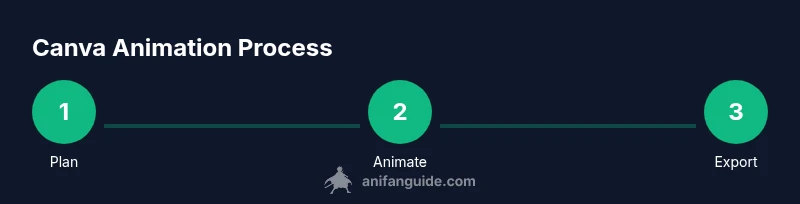
Learn how to animate on Canva with a practical, step-by-step approach. You’ll design or import assets, apply Canva’s built-in animation presets to text and graphics, and fine-tune timing and transitions. Then export as video or GIF for social posts, tutorials, or presentations. This guide covers the essentials, plus practical tips to help you work faster and with better results.
Canva animation basics: what you can do
If you’re exploring how to animate on Canva, start by understanding motion at two levels: object-level animations (applied to individual elements) and page-level transitions (how an entire slide or page moves). Object animations let you control how text, shapes, and images enter, emphasize, or exit a scene. Page transitions govern how the viewer moves from one frame to the next. According to AniFanGuide, most creators begin with a clear visual hierarchy—headline, supporting copy, and visuals—and then assign motion to components that deserve emphasis. Use motion sparingly; a well-timed fade or slide is often more effective than constant movement. Canva offers a range of presets you can apply with a click, and you can fine-tune duration and delay on the timeline for precise pacing. This foundational workflow works whether you’re building a quick social post or a short tutorial.
Designing with animation: layers, assets, and alignment
Animation in Canva thrives when layers are organized thoughtfully. Start with a strong layout: grid-based alignment, consistent margins, and contrasting colors for readability. Group related elements so you can move them as a unit, then assign animations to entire groups or individual items as needed. Use Canva’s alignment guides and snap-to-grid features to keep typography and graphics aligned. Build a visual rhythm by alternating motion types (e.g., a text block fading in while a graphic slides up). Maintain a cohesive look by limiting yourself to a small palette and a max of two or three animation styles per project. Remember: design clarity often wins over complexity, especially on small screens.
Importing and preparing assets
Canva lets you upload images, icons, fonts, and audio to enrich your animation. Before you import, organize assets into folders and name layers clearly so you can locate them quickly in the timeline. When adding fonts, ensure you have the rights to use them in your project, especially for commercial Work. If you’re using stock media, choose resolutions that won’t blur when scaled. Always test assets at the final output size to confirm legibility and color contrast. If you’re unsure about an asset’s compatibility, use Canva’s preview to compare how it looks with and without animation.
Timeline concepts in Canva: frames, duration, and pacing
The timeline is your primary tool for timing. Each element’s animation has a duration and a delay; the total scene duration is governed by the longest timeline. Align entry and exit points so movements feel intentional, not random. For faster social formats, keep sequences crisp and avoid long lingering frames. Use shorter durations for text to ensure readability, and longer durations for key visuals that require viewer processing. The pacing should feel natural: early emphasis on the message, then a gentle build toward the call to action. When in doubt, run a quick preview to verify how the timing feels in real-world viewing contexts.
Applying text animations effectively
Text needs legible typography and purposeful motion. Use entrance animations to introduce headlines, then shift to subtle emphasis for supporting copy. Avoid mixing too many text effects—consistency improves comprehension. Pair bold, large headlines with simple body text, and stage motion that directs attention to the focal point. If you add multiple lines of text, stagger their entrances to guide the viewer’s eye. Finally, test legibility on mobile by shrinking the canvas; if the text becomes crowded, scale down or simplify the message.
Animating graphics and illustrations
Graphics—icons, shapes, and photos—benefit from motion that clarifies meaning. Apply entrance motions to reveal key visuals, and use emphasis effects to highlight important details. For icons, consistent motion speeds create a cohesive feel across scenes. If you use animated illustrations, ensure the motion supports the narrative rather than distracting from it. Use masking and layering to create depth, and synchronize movement with narration or music where appropriate. Always keep a balance between movement and stillness to avoid viewer fatigue.
Working with video and audio in Canva
Adding video and audio can elevate your animation, especially for social posts and tutorials. Import clips or use Canva’s stock video and sound libraries, then trim to focus on essential moments. Sync key visual changes with audio cues—like a beat drop or a spoken emphasis—to reinforce the message. If you’re adding voiceover, plan captions and subhead timing to complement the spoken content. Check licensing for any third-party assets and keep audio levels balanced so no single element overwhelms the others.
Export options and file formats
Canva supports exporting animations as video files for most platforms. Choose MP4 for versatility and compatibility across social networks. If you need a looping or shorter format, you can export multiple sizes or consider a quick GIF conversion using external tools. Before exporting, review color profiles, audio levels, and compression settings to preserve quality in your chosen format. For accessibility, provide captions or on-screen text that remains readable without sound.
Troubleshooting and best practices
If motion looks jumpy or elements misalign between edits, double-check your layer order and anchor points. Keep animations consistent across scenes, and prefer a limited set of effects that reinforce the message. When assets don’t render as expected, re-upload the media or export at a higher resolution and re-import. Regularly save iterations to compare versions and avoid last-minute surprises. Finally, keep accessibility in mind: high-contrast text and legible fonts improve comprehension for diverse audiences.
Real-world example: from concept to final animated social post
Imagine creating a 15-second teaser for a new anime infographic. Start with a bold headline that fades in, followed by a subheading sliding up as a key visual appears. The main graphic could pan slightly while a short voiceover lands on the beat. Add a final call-to-action with a color-coded CTA button that pops in at the end. Preview on mobile, adjust line lengths, and trim any excess timing. This end-to-end workflow demonstrates how Canva’s animation features translate a concept into a polished, shareable post.
Tools & Materials
- Computer or tablet with internet access(Stable connection recommended for uploads and previews)
- Canva account (free or Pro)(Some advanced assets may require Pro)
- Mouse or trackpad(Precise control for alignment and timing)
- Asset library (images, fonts, audio)(Use Canva assets or licensed external media)
- External media (optional)(Upload your own images, logos, or audio)
Steps
Estimated time: 60-90 minutes
- 1
Open Canva and create a suitable project
Launch Canva and select a project type with appropriate dimensions for your animation (e.g., 1080x1080 for social posts). Name the project and set up a clean grid to guide placement of elements.
Tip: Use a consistent aspect ratio to simplify export and platform compatibility. - 2
Import assets or choose from Canva
Upload your images, icons, fonts, and audio, or browse Canva’s built-in library to gather elements that fit your concept. Organize assets into folders for quick access.
Tip: Prioritize high-contrast assets to maintain readability after animation. - 3
Add static layout and typography
Place your headline, subhead, and visuals in a clear hierarchy. Use bold typography for main messages and ensure spacing supports legibility when animated.
Tip: Limit the number of font families to avoid a crowded look. - 4
Apply object animations to elements
Select elements and apply entry effects (e.g., fade, rise, slide). Assign animations individually or to groups for cohesive motion.
Tip: Stagger entrances to guide the viewer’s eye smoothly. - 5
Tune timing and pacing on the timeline
Drag animation bars to adjust duration and delays. Keep movements on screen long enough for reading yet short enough to maintain energy.
Tip: Preview frequently to ensure pacing feels natural on mobile. - 6
Add transitions and audio (optional)
If your project includes multiple scenes, apply transitions between frames. Import or record a concise voiceover or music track and balance levels.
Tip: Mute background audio during text entrances to preserve clarity. - 7
Preview and iterate
Play the full animation to catch timing issues, readability, and visual rhythm. Make small adjustments and re-preview until satisfied.
Tip: Keep versions of your project to compare tweaks easily. - 8
Export in the desired format
Choose MP4 for versatile use; adjust resolution and frame rate if available. Consider exporting multiple sizes for different platforms.
Tip: Enable captions or on-screen text for accessibility. - 9
Review final outputs
Watch on target devices, verify color accuracy, and confirm that the call-to-action is clear. Save final versions and back up files.
Tip: Create a short version for stories or reels and a longer version for tutorials.
Frequently Asked Questions
Do I need Canva Pro to animate?
You can start animating with Canva's free plan, but some advanced assets and features may require a Pro account. In many cases, basic text and simple object animations are available to all users.
You can begin animating with Canva for free, but some advanced tools may be limited to Pro users.
What file formats can I export my Canva animation as?
Export options typically include MP4 video; for other formats like GIF, you may need to convert post-export or use alternate tools depending on your plan and project goals.
Export as MP4, and consider external tools for GIF if needed.
Can I animate text and images separately?
Yes. Canva lets you apply separate animations to text and other elements, giving you fine-grained control over how each component enters the scene.
Yes—texts and images can be animated independently for precise effects.
What’s a good duration for social media animations?
Aim for concise animations that convey the core message quickly, balancing readability with engagement. Shorter clips work well for quick scroll-friendly platforms.
Keep it short and readable, perfect for fast social formats.
How can I troubleshoot jittery animations?
Check your layer order, ensure consistent anchor points, and test with previews. Re-upload assets if rendering issues persist.
Check layers, anchors, and preview often; re-upload if needed.
Can I reuse Canva animations in other projects?
Yes. Use consistent motion presets across projects and save custom animation styles to reuse them in future work.
Yes—save and reuse your animation styles for efficiency.
Watch Video
Main Points
- Plan motion to support the message, not overwhelm it.
- Apply animations to individual elements and groups with intent.
- Use pacing and timing to guide viewer attention effectively.
- Export in formats suitable for your platform and audience.