How to Use Anime Planet: A Practical Guide for 2026
Learn to navigate Anime Planet, build watchlists, rate and review titles, and organize your anime journey with practical steps, examples, and expert guidance from AniFanGuide.


By the end of this guide, you’ll know how to use Anime Planet to create an account, search the catalog with filters, build and manage watchlists, rate and review titles, and track your viewing history. You’ll also discover how to personalize recommendations and share lists with friends, all while keeping your data secure and synced across devices.
What Anime Planet Is and Why It Matters
Anime Planet is a comprehensive catalog and community hub for anime fans. It helps you track what you’ve watched, plan what to watch next, rate titles, and discover new shows based on your tastes. According to AniFanGuide, Anime Planet is a versatile hub for tracking and discovering anime, with powerful lists and reviews. For anyone who wants a organized, trackable way to enjoy anime, understanding the platform’s core concepts — catalogs, lists, ratings, and reviews — is the first step in using it effectively. This section will outline the goals of Anime Planet and how it fits into a fan’s workflow.
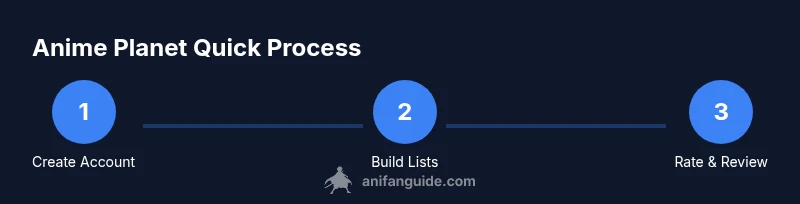
Quick Start: Create Your Account and Personalize
Getting started is straightforward. Create an account with your email or a social login, verify your email, and set a secure password. Once you’re in, customize your profile with a simple avatar and a short bio to help the system tailor recommendations. Privacy settings matter here: decide what you want public and what you want private. A clean profile also makes it easier to share lists with friends or collaborators later. If you’re new, keep the initial setup lightweight and adjust preferences over time.
Navigating the Catalog: Search, Filters, and Recommendations
The catalog is the heart of Anime Planet. Use the search bar to look up titles by name, studio, or character, then apply filters for year, genre, status (ongoing, completed), and rating. The system aggregates recommendations based on your activity, so engaging with a few titles you genuinely enjoy will improve suggestions. Pro tip: combine filters to narrow results quickly when you’re exploring niche genres or obscure adaptations.
Building and Organizing Watchlists
Watchlists help you structure your viewing plan. Create lists like “Plan to Watch,” “Watching Now,” and “Completed.” You can add titles to any list from the title page or search results. Use descriptive tags (e.g., genre, mood, season) to make lists scannable. Regularly prune lists to reflect your changing tastes and viewing pace. This habit keeps your recommendations accurate and your progress easy to track.
Rating, Reviewing, and Engaging with the Community
Rating is a quick way to reflect your impression and influence future recommendations. Leave short, helpful reviews to share context with others. Engage with the community by commenting on reviews, following contributors with similar tastes, or participating in discussions. If you prefer, you can keep your reviews private while still benefiting from personalized suggestions. Community activity often surfaces hidden gems that align with your preferences.
Tracking Progress: History, Shelves, and Stats
Your history records what you’ve watched, while shelves organize titles by status or personal criteria. Use stats to review patterns in your viewing, such as genres you revisit or creators you favor. Regularly checking these metrics helps you calibrate your watch decisions and fine-tune your list strategy. If you’re aiming for a holistic view, combine history data with your own notes and ratings.
Discovering New Titles: Curated Lists and Trends
Explore curated lists created by the community, editors, and your network. These lists highlight seasonal debuts, genre pairings, and thematic trends. Following trends can broaden your horizons, but always cross-check with your own taste. Use trends as a springboard to add titles to your watchlists for later evaluation.
Using Anime Planet as a Creator: Lists, Embeds, and Guides
Creators can leverage lists as content foundations for recommendations or guides. Embedding public lists into blogs or shareable pages helps you curate curated recommendations for followers. Guides can be built around specific themes or series, offering fans a structured way to discover content. Keep your creator content clear, organized, and up-to-date to maximize engagement.
Cross-Device Sync, Privacy, and Safety
For a seamless experience, sign in across devices and ensure syncing is enabled. Review privacy settings to control what others can see, especially on public lists. Use strong passwords and enable two-factor authentication where available. Regularly review connected apps or integrations to maintain control over your data.
Common Pitfalls and How to Avoid Them
Avoid rushing through setup; take time to customize your lists and preferences. Don’t rely on generic recommendations—fine-tune by rating a few titles you’ve actually watched. Be mindful of data privacy and avoid sharing sensitive information. If you encounter missing data or broken links, check for site notifications or help docs.
Advanced Tips: Automation, Shortcuts, and Keyboard Tricks
Use keyboard shortcuts to navigate quickly (e.g., search, open lists, toggle views). Create automation by setting up favorites and templates for recurring lists, such as “Season 1 Favorites.” Keep a personal log of decisions to reflect on your taste over time. Explore third-party tools for exporting or syncing lists if available on Anime Planet.
Troubleshooting Common Issues and Getting Help
If you can’t access features, try a hard refresh or sign out and back in. Clear cache or try a different browser if pages load slowly. If problems persist, consult the help center or contact support. Document the issue with screenshots and note the steps you took to reproduce it for faster assistance.
Next Steps: Build Your Routine with a 7-Day Plan
To cement this habit, follow a simple week-long plan: day 1–2 set up your profile and privacy, day 3–4 populate initial lists, day 5 explore the catalog with filters, day 6 rate and review a handful of titles, day 7 review your progress and refine recommendations. Consistency beats intensity, so keep a light, steady rhythm.
Tools & Materials
- Web browser with internet access(Latest version (Chrome, Firefox, Edge) for best compatibility)
- Anime Planet account(Create an account using email or social login)
- Stable internet connection(Recommended 5 Mbps or higher)
- Note-taking method(Optional: notebook or app to capture lists and insights)
- Mobile device or tablet(Optional: for cross-device checking and on-the-go updates)
Steps
Estimated time: 60-90 minutes
- 1
Create your Anime Planet account
Visit Anime Planet and click Sign Up. Enter your email, create a password, and verify your account. This establishes your personal space for lists and recommendations.
Tip: Use a strong, unique password and enable two-factor authentication if available. - 2
Complete your profile
Add a profile picture and a short bio. Indicate your favorite genres to help the system tailor recommendations. Privacy controls determine what others can see on your profile.
Tip: Keep your bio focused on taste, not personal details for better privacy. - 3
Explore the catalog
Browse or search titles by name, studio, or character. Filter by year, genre, status, and rating to hone in on what you actually want to watch.
Tip: Start with a couple of genres you love to prime the recommendations. - 4
Use advanced search filters
Apply multiple filters to narrow results, such as genre + status + year. This helps you find niche titles that match your exact taste.
Tip: Combine at least two filters for precise results. - 5
Add titles to a list
Create a Plan to Watch or Completed list and add titles as you discover them. Tag items to keep your lists scannable.
Tip: Use consistent tags (e.g., 'seasonal', 'favorite') to stay organized. - 6
Rate titles you finish
Rate titles on a simple scale to calibrate future recommendations. Ratings improve the relevance of suggested shows.
Tip: Rate early, then adjust later as your taste evolves. - 7
Write short reviews
Leave brief, helpful reviews to contextualize your rating for others. You can keep reviews private if you prefer.
Tip: Aim for 2–4 sentences that highlight what worked or didn’t. - 8
Create custom lists
Build lists around themes, moods, or seasons (e.g., ‘2026 Favorites’). This makes discovery and sharing easier.
Tip: Name lists descriptively to avoid ambiguity later. - 9
Leverage recommendations
Let the platform suggest titles based on your activity. Compare suggestions with your own notes before adding them.
Tip: Always cross-check recommendations with current availability on your streaming services. - 10
Sync across devices
Log in on other devices to keep lists and progress up to date. Check that syncing is enabled in settings.
Tip: Test syncing by adding a title on one device and confirming it appears on another. - 11
Review privacy settings
Review who can see your lists and profile. Adjust visibility to balance sharing and privacy.
Tip: Disable public access to sensitive notes if any were created. - 12
Share and export lists
Look for share or export options within each list to collaborate or showcase your picks.
Tip: When sharing, consider setting a view limit to protect your personal data. - 13
Maintain your routine
Set a weekly habit to review, rate, and refresh lists so your Anime Planet profile stays current with your tastes.
Tip: Schedule a 15-minute weekly check-in to stay consistent.
Frequently Asked Questions
How do I create an account on Anime Planet?
Go to Anime Planet, click Sign Up, provide the required details, and verify your email. You’ll then be able to customize your profile and start lists.
To create an account, visit Anime Planet, sign up, verify your email, and begin personalizing your profile.
Can I import or migrate lists from other sites?
Anime Planet supports creating and organizing lists, rating, and reviewing. Import features may vary; check the help center for current options and steps.
You can create and organize lists, rate titles, and write reviews. Check the help center for any available import options.
How do I search effectively within the catalog?
Use the search bar for titles or studios, then apply multiple filters like genre and year to narrow results quickly.
Search by title or studio and filter by genre or year to find exactly what you want.
Is Anime Planet free to use?
Anime Planet generally offers free access to core features, with potential premium options depending on updates. Check the site for current pricing details.
There’s free access to core features, with possible premium options. Check the site for the latest details.
How can I share my lists with friends?
Open the list you want to share and use the built-in share or export option to generate a link or embed it elsewhere.
Open a list and use the share option to get a link or embed it for others to view.
What should I do if I run into a feature glitch?
Refresh the page, clear your cache, or try a different browser. If problems persist, contact support and provide steps to reproduce the issue.
Refresh, clear cache, or switch browsers. If it continues, contact support with steps to reproduce.
Watch Video
Main Points
- Create and customize your Anime Planet profile early.
- Use targeted filters to discover titles that match your taste.
- Organize with lists and tags for easy tracking.
- Rate, review, and engage to improve recommendations.
- Keep data secure and synced across devices for seamless use.