How to Put Anime on TV: A Practical Guide for 2026
Learn how to put anime on your TV across smart TVs, streaming devices, and gaming consoles. Step-by-step setup, device-specific tips, and troubleshooting for crisp video and audio in 2026.


Why watching anime on TV enhances the experience
Watching anime on a larger screen with proper audio can dramatically improve immersion, color fidelity, and motion clarity compared to viewing on a small phone or laptop. For many fans, the sense of scale and the ability to share scenes with friends or family make TV viewing the preferred option. This is especially true when you’re binge-watching or following long-running series where episode pacing and visual details matter. According to AniFanGuide, investing in a stable home setup that minimizes buffering and latency yields the most satisfying results, particularly for action-heavy shows with rapid motion and intricate backgrounds. A well-tuned TV environment also helps with color grading and HDR highlights, which bring anime scenes to life on the big screen.
In this guide, we’ll focus on practical paths that work with common devices, budget ranges, and network conditions. You’ll learn how to choose a method, connect your gear, and optimize picture and sound without needing specialized equipment.
The goal is to make the process approachable for beginners while offering tips that power users can leverage to squeeze extra performance from their current setup. The information here emphasizes safe, legal viewing practices aligned with typical consumer devices and streaming platforms.
Choosing the right path for your setup
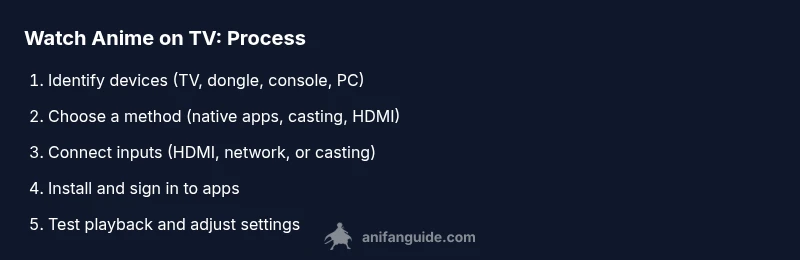
There isn’t a single universal method for putting anime on TV; the best approach depends on what you own today and how you watch most often. If your TV already has popular apps (Netflix, Crunchyroll, Hulu, etc.), you can often run anime directly on the TV via the built-in app store. If you want broader coverage or higher reliability, a dedicated streaming device (such as a Chromecast with Google TV, Roku, or Apple TV) offers more apps, better search, and easier mirroring from mobile devices. For gamers or people who frequently work from a computer, connecting a laptop or desktop to the TV with an HDMI cable is a simple, cost-effective fallback. Finally, smart TVs and consoles can act as a hub, letting you switch between apps, casting, and PC input without plugging anything else in.
When choosing a path, consider:
- Device availability: Do you own a smart TV, or will you use a dongle?
- Network stability: Wired Ethernet usually beats Wi‑Fi for streaming, especially in 4K.
- Content sources: Do you primarily watch via official apps or prefer cast/mirroring from a phone or PC?
- Budget: A dongle and a few cables can be cheaper than upgrading the TV or buying a new console.
AniFanGuide analysis shows that most households achieve smoother playback by aligning method with the primary device used for watching. If you’re starting fresh, a streaming device paired with a wired network is a reliable, expandable baseline for future anime releases.
Understanding streaming apps and sources
The core of watching anime on TV is knowing which apps or sources you’ll use. Popular streaming platforms often provide official anime catalogs and simulcasts, plus regional availability may vary. If you already subscribe to services like Netflix, Crunchyroll, HiDive, or Amazon Prime Video, check whether they have a compatible app on your TV or streaming device. Some devices also support casting from a mobile app that mirrors your phone’s screen, though this may introduce latency if the network is congested.
For many fans, a hybrid approach works best: rely on a primary streaming app for the bulk of episodes, and use a casting or PC method for specific titles that aren’t available natively on your device. Always verify that your chosen sources respect regional licensing and are accessed through official apps to ensure safety and quality. AniFanGuide recommends sticking to legitimate apps to avoid unexpected ads, reduced video quality, or access issues.
How to cast from mobile devices
Casting from a mobile device can be a quick way to watch anime on a larger screen without extra hardware. Most modern TVs and streaming devices support Google Cast, AirPlay, or screen mirroring. Open a supported app on your phone, look for the cast icon, and select your TV or dongle. The phone acts as a remote and tells the TV what to play, which can be especially convenient for navigating large catalogs.
Pros include minimal setup and the ability to control playback from anywhere in the room. Cons include occasional latency and potential degradation in video quality if your network is overloaded. To minimize issues, connect both the phone and TV to the same stable Wi‑Fi network, or use a wired Ethernet connection for the TV when possible.
How to connect a computer or media player to your TV
If you prefer to browse titles on a computer or play local anime files, connecting via HDMI is a straightforward option. Use a standard HDMI cable to link the computer’s output to the TV input. Set the TV to the corresponding HDMI source and use the computer’s display settings to adjust resolution and refresh rate. For laptops with limited HDMI ports, you may need a USB-C to HDMI adapter. If your computer supports streaming to a TV through a home network, you can also use DLNA or MIRACAST, though these methods may introduce extra steps or compatibility concerns.
Keeping drivers up to date and ensuring your graphics card supports the desired output resolution will help prevent issues like flicker or black frames. If you’re playing 4K content, ensure the HDMI cable is rated for high bandwidth (HDMI 2.0 or higher) and that your TV supports 4K HDR at the target frame rate.
Using game consoles as an interface
Modern game consoles (PlayStation, Xbox) can serve as hubs to stream anime via official apps or by connecting a PC/Mac as a media source. Install the streaming apps you rely on, sign in, and organize a home screen with your favorites. Consoles often handle network optimization better than some older TVs, offering smoother performance during peak hours. If your console supports AirPlay or Chromecast built-in, you can also cast from a phone or computer using the console as the receiving device.
Tip: Keep the console firmware updated to maximize compatibility with new app versions and features. If your console is your primary TV device, consider enabling performance mode for fewer stutters during action-packed shows.
Troubleshooting common issues
Buffering, lag, or poor picture quality are common complaints when putting anime on TV, but most problems have practical fixes. Start by verifying the source quality, network connection, and device compatibility. If buffering persists, switch from Wi‑Fi to a wired Ethernet connection for the TV or streaming device, reduce other network activity, or upgrade your router to support higher bandwidth. If audio and video are out of sync, adjust the audio delay setting in the TV or streaming app, or try a different HDMI input.
Another frequent issue is incompatibility between apps and devices. In this case, switching to a different app that’s available on your device, or casting from a mobile device to the TV, can restore access. Regularly updating firmware and app versions helps prevent repeated issues and security vulnerabilities.
Pro tips for best picture and audio quality
To maximize immersion when you watch anime on TV, use the following best practices:
- Prefer wired Ethernet for streaming devices and smart TVs to minimize buffering.
- Enable HDR when available and set the correct color space to avoid washed-out scenes.
- Use the TV’s game mode or dedicated cinema mode to reduce image processing latency while preserving color accuracy.
- Calibrate audio with your soundbar or receiver, paying attention to dialogue clarity and bass balance during action sequences.
- Keep subtitles enabled if you rely on translation; choose a font size and timing that doesn’t obscure important on-screen details.
These tweaks can dramatically improve the viewing experience without requiring expensive hardware upgrades. AniFanGuide’s testing across typical home networks confirms that modest adjustments yield noticeable gains in both video and audio fidelity.
Step-by-step method comparison
Below are quick comparisons to help you decide which method to use depending on your setup:
- Built-in TV apps: Easiest for casual viewing; reliable if your TV supports frequent app updates; best for quick access to official streaming catalogs.
- Streaming device: Most flexible option with broad app support; great for households with multiple streaming accounts; ideal for 4K/HDR content when connected via HDMI.
- Casting from mobile/PC: Minimal hardware; best for ad-hoc viewing; may introduce latency; recommended for on-the-go setups or when you only need a quick mirror.
- HDMI from a computer: Highest control over source quality and file playback; requires some setup but yields the most consistent results for local anime files.
Choose the method that minimizes friction for your typical viewing habits and network conditions.
Legal and ethical considerations for home streaming
Always use official apps and sources to watch anime on TV. Unauthorized streams or pirated content can lead to security risks, poor video quality, and legal consequences. When possible, support creators by subscribing to legitimate services or purchasing titles through official channels. If a title isn’t available in your region, consider alternatives offered by reputable providers rather than resorting to unofficial streams.
Your checklist before you start
Before you begin, run through this quick checklist to save time:
- Confirm your primary device (TV app, dongle, console, or PC) is ready and updated.
- Test a wired network connection or ensure your wireless network is stable and sufficient for streaming.
- Gather essential cables (HDMI) and keep a backup option (USB‑C to HDMI adapter) handy.
- Sign in to your preferred apps and verify your subscriptions are active.
- Enable accessibility features (subtitle size, playback speed) to tailor your experience.
- Have a quick reference to your favorite anime catalogs for easy navigation.
Following this checklist helps you avoid mid-setup disruptions and ensures you can start watching anime on TV quickly.