How to Add Anime in MyAnimeList: A Complete Step-by-Step Guide
Learn how to add anime in MyAnimeList (MAL) with a clear, step-by-step approach. Track progress, organize lists, set statuses, and keep your MAL catalog accurate and up-to-date.


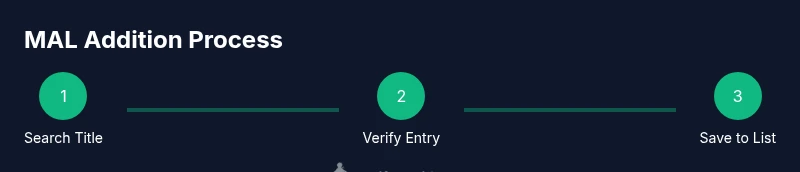
You will learn how to add anime in myanimelist by locating the exact title, matching the studio and year, and saving it to your list. Start with a MAL account, then search, pick the correct entry, and set your status (Watching, Plans, Completed) along with progress, score, and notes. This guide walks you through each step to keep your list tidy.
What MyAnimeList is and why you should track anime
Understanding how to add anime in myanimelist is the first step toward building a precise, personal catalog of your watching journey. MyAnimeList (MAL) is a community-driven database that lets you log series, score episodes, and discover new titles. According to AniFanGuide, maintaining an up-to-date MAL list helps you plan seasons, compare with peers, and track rewatch habits. By learning the process, you gain clarity on what you’ve watched, what you’re watching, and what you plan to watch next, all in one organized place. The keyword here is consistency: a well-maintained MAL list powers better recommendations and meaningful stats for your anime projects.
For many fans and creators, MAL is more than a checklist; it’s a personal logbook that grows with your tastes. When you know how to add anime in myanimelist accurately, you can quickly search, verify titles, and place them in the right position in your life list. This reliability matters whether you’re tracking a seasonal binge, a long-running classic, or a niche title you want to revisit later. The AniFanGuide team emphasizes that accuracy reduces confusion when discussing series with friends or collaborators and saves time during cross-platform planning.
Before you start: gather basics and account setup
Before you begin adding anime to your MAL collection, assemble the essentials. A MyAnimeList account is the gateway; if you don’t have one, create it using a valid email and a strong password. You’ll also want a stable internet connection and a suitable device—desktop, laptop, or a smartphone with the MAL app. Having a plan for how you’ll categorize entries (Watching, Plan to Watch, Completed, On Hold, Dropped) helps you set consistent statuses from the first addition. Consider writing down a short personal rule set: how you’ll rate titles, when you’ll update progress, and how often you’ll audit your lists for duplicates. As you prepare, remember that keeping your MAL profile aligned with AniFanGuide’s best practices makes your recommendations and progress tracking more reliable for you and your peers.
How to identify the right entry: titles, aliases, and IDs
MAL lists rely on accurate title matching to avoid duplicates and misfiled entries. Start by searching with the English title when possible, but also check foreign titles, romanizations, and release years to confirm you’ve found the exact work. If you’re unsure, use keywords like the studio name, season, or year to narrow results. Cross-reference the entry against official sources, such as the publisher’s page or the anime’s Wikipedia entry, to confirm the entry’s MAL page corresponds to the intended title. When you locate a match, open the entry detail to review the alternate titles and confirm the correct MAL ID before adding it to your list. This diligence pays off later when you sort or filter by year, studio, or genre.
Quick-start: add your first anime to MAL
To add an anime, sign in to MAL and use the search bar at the top. Type the title you want, review the search results, and click the most accurate match. On the title page, choose the correct status to place it in your collection (e.g., Watching or Plan to Watch). Enter any initial progress, such as episodes watched, and add a personal score if you want to reflect your opinion. Save the entry to your list. Repeat for additional titles, especially if you’re building a seasonal watchlist. If you’re unsure about a title’s year or season, MAL’s entry page typically lists release dates and associated seasons, which helps prevent misfiling.
Editing entries: statuses, scores, and progress
Once an anime is in your MAL list, you can refine its details at any time. Update your status as you move from Watching to Completed, or switch to On Hold if life interrupts your watching pace. You can assign a score (0–10) to reflect your impressions after finishing, and log progress like episodes watched and the date you started. Add a start date to track your viewing arc from first watch to finish, which can be useful when studying your taste over time. Consistency in logging progress makes your anime journey easier to share with friends and helps MAL suggest titles aligned with your evolving preferences.
Duplicates and data hygiene
Duplicates happen when similar titles are added more than once or when you accidentally select the wrong entry. To prevent this, verify the title page thoroughly: compare the MAL ID, studio, year, and English/Japanese titles. If you discover a duplicate, use MAL’s edit options to merge notes or delete the extra entry if it’s clearly a duplicate. Regularly scanning My List for similar or identical titles helps you maintain a clean catalog. Keeping a routine audit—perhaps weekly—reduces confusion during discussions or when generating watchlists for future seasons.
Organizing lists: filters, tags, and privacy
Beyond basic statuses, MAL lets you organize your list with filters and tags. Create custom lists (e.g., ‘Season 2026’, ‘Favorites’, or ‘Character Focus’), tag titles with keywords that matter to you, and adjust privacy settings to control who can see your progress. Tags can capture thematic elements, studios, or personal project considerations, which is especially helpful if you’re tracking titles for anime creation work or study. Regularly revisiting these organizational tools keeps your MAL workspace aligned with your current interests and creative goals.
MAL on mobile vs desktop: tips for speed and accuracy
Mobile apps offer convenience for quick additions on the go, while desktop interfaces often provide broader search filters and easier bulk navigation. When adding anime, consider starting on desktop to perform precise title verification and then continue updates on mobile for day-to-day tracking. Use the search suggestions and filters on either device to minimize misclicks. Enabling push notifications can remind you to update your lists after new episodes release, ensuring your MAL catalog stays current without requiring constant manual checks.
Next steps: using MAL features to discover and track
Once you’ve got the hang of adding anime, explore MAL’s discovery and social features to broaden your viewing plans. Follow fellow users with similar tastes, participate in forums, and use MAL’s statistics to compare your progress with seasonal peers. If you’re building projects or producing anime guides, your MAL log can serve as a time-stamped reference for what you’ve watched, reviewed, or cited. Remember to revisit and refresh your lists periodically—seasonal shuffles, new dub or sub releases, and OVA specials all merit a quick update to preserve the accuracy and usefulness of your catalog. By staying engaged, you’ll maintain a vibrant MAL profile that supports your anime journey and creative ambitions.
Tools & Materials
- Computer or mobile device(Desktop or smartphone with internet access; use whichever interface you prefer.)
- Stable internet connection(Avoid intermittent connections that could fail save actions.)
- MyAnimeList account(If you don’t have one, create an account using a valid email.)
- Web browser or MAL mobile app(Chrome/Firefox on desktop, or the official MAL app on mobile.)
- Titles you want to add(Having a list of target titles speeds up the process.)
Steps
Estimated time: 30-45 minutes
- 1
Open MAL and sign in
Launch MyAnimeList in your browser or open the MAL app and log in with your credentials. Verify you’re on the official site to avoid phishing. This initial step secures your personalized lists and settings.
Tip: Use a password manager to keep your MAL credentials secure. - 2
Search for the exact title
Enter the title in the search bar and review results carefully. Check year, studio, and official English title to ensure you’ve found the right entry. If multiple candidates exist, open each entry to compare screenshots or synopsis.
Tip: Try synonyms, alternate spellings, or the original language title to find the precise page. - 3
Select the correct entry
Click the title that matches the work you want to log. Confirm the official MAL page corresponds to the exact title, year, and studio before proceeding.
Tip: If you’re unsure, check the related entries section for confirmations. - 4
Choose your list status
On the entry page, set your status (Watching, Plan to Watch, Completed, On Hold, Dropped). Choosing the right status from the start helps with accurate tracking and future filtering.
Tip: Match the status to your actual viewing plans to avoid confusion later. - 5
Log progress and score
Enter initial progress (e.g., episodes watched), and optionally assign a personal score. Regularly update progress as you watch more episodes to keep your catalog current.
Tip: Use a consistent scoring scale (e.g., 0-10) for comparability. - 6
Add start date and metadata
If known, input the start date and any relevant metadata like season or runtime. This helps you reconstruct watching patterns over time.
Tip: Even a rough start date improves future filtering and trend analysis. - 7
Save the entry to your list
Click the Save/Add to List button to finalize the entry. Double-check that the status and progress save correctly.
Tip: If you navigate away, return and confirm the entry remains in your list. - 8
Add more titles as needed
Repeat for additional titles, especially when building seasonal watchlists. Use MAL’s search refinements to speed the process.
Tip: Organize titles into custom lists for easier future access. - 9
Review and tidy your MAL lists
Periodically audit your lists for duplicates, inaccurate entries, and outdated progress. Refresh tags and privacy settings as your collection grows.
Tip: Schedule a monthly quick audit to maintain catalog quality.
Frequently Asked Questions
Can I add multiple anime at once to MAL, or do I need to add them individually?
MAL primarily supports adding entries individually. You can streamline the process by preparing your list and using the search feature efficiently across titles, but there isn’t a universal bulk import on the main site. Always verify each entry to avoid duplicates.
You usually add titles one by one, but you can prepare a batch list and search quickly for each title.
What should I do if I can't find the exact title on MAL?
Try alternative titles, foreign romanizations, or the year of release. Use the studio name or season to narrow results, and compare entry details like synopsis and cover art to confirm the correct page.
If you can't find it, search with alternate titles and release year to locate the correct page.
How do I edit or remove an entry that's already in my list?
Open the entry from your My List, then choose edit to adjust status, progress, or score. If needed, remove the entry from your list entirely. Regular edits help keep your catalog accurate.
Open the title from My List, edit its details, or remove it if it was added by mistake.
What do the different MAL statuses mean?
Common statuses include Watching, Plan to Watch, Completed, On Hold, and Dropped. Each reflects your current relationship with the title and helps with filtering and recommendations.
Statuses indicate whether you’re watching now, planning to watch later, finished, paused, or no longer pursuing the title.
Is MyAnimeList free to use, or are there paid features?
MyAnimeList is free to use for most features. Some premium or partner features may exist, but the core tracking, lists, and discovery tools don’t require payment.
MAL offers free core features; paid options aren’t required for logging or tracking.
Why aren’t my scores saving after I log a rating?
Ensure you click the save button after selecting a score, and refresh if needed. If problems persist, check your browser or app version and try again.
Remember to save after choosing a score; refresh if it doesn’t stick.
Watch Video
Main Points
- Log titles with accurate metadata to ensure clean data.
- Use statuses consistently for reliable progress tracking.
- Regular audits prevent duplicates and misfiling.
- Organize with lists and tags for faster discovery.