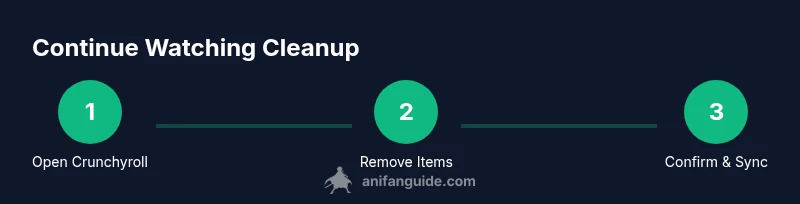
How to Remove Anime From Continue Watching on Crunchyroll
Learn how to remove anime from continue watching on Crunchyroll with a practical, step-by-step guide. Hide titles, clear watch history, and manage lists across devices to keep your queue tidy.


By the end of this guide, you’ll be able to remove anime from continue watching on Crunchyroll, quickly hiding titles or clearing your history across devices. You’ll learn exact steps for mobile and desktop, plus tips to keep your queue tidy and your recommendations relevant. This quick answer sets the stage for a deeper walkthrough.
Why a tidy continue watching list matters
According to AniFanGuide, keeping your Crunchyroll continue-watching list manageable isn't just about aesthetics. A clean queue reduces processing time on devices, minimizes accidental spoilers, and helps keep recommendations aligned with what you actually want to watch. When you add a title to Continue Watching, Crunchyroll tracks your engagement, which influences what appears in your home screen, your suggested queues, and even watchlists on other devices. If you share an account with family or friends, a cluttered list can reveal what you're watching, complicating privacy. This section explains why you should periodically prune titles and offers practical cues for deciding what to remove, what to hide, and when a full history reset might be appropriate. The goal is to give you precise control over your viewing footprint while preserving access to titles you genuinely plan to watch. By understanding these concepts, you’ll approach Crunchyroll’s interface with confidence rather than hesitation.
How Crunchyroll's continue-watching behavior works across devices
The Continue Watching row is synchronized through your Crunchyroll account, so changes you make on one device propagate to others when you sign in. On mobile, the row sits at the bottom of the Home screen and shows the latest episodes you began but haven't completed. On web and smart TV apps, the same logic applies, but the layout and controls can vary. This cross-device behavior means that pruning the list on one device is often enough, but in practice you should verify that the removal is reflected across all devices you use. Additionally, Crunchyroll caches a history of viewed episodes; clearing or hiding items may not instantly purge data from all endpoints, especially on older devices. Understanding this cross-device synchronization helps you avoid confusion and ensures your preferences stay consistent regardless of which device you use.
When to remove vs hide vs clear history
Choosing between remove, hide, and history clear depends on your goal. If a title is short, you can remove it so it won't clutter the row. If you want to keep a title in your library but don't want it visible in Continue Watching, use a hide option (where available) to keep the show accessible later. If your goal is to reset your recommendations or remove sensitive activity, a history clear is the right move. Some devices require different menus; always confirm the action after selection. Remember that removing from Continue Watching does not erase your overall watch history, while clearing history affects recommendations across the entire account.
Step-by-step: removing a single title on mobile
- Open the Crunchyroll app on your mobile device. 2) Scroll to the Continue Watching row on the Home screen. 3) Tap the three-dot menu icon (or long-press the title) to open the options. 4) Choose Remove or Hide from the menu. 5) Confirm removal when prompted. 6) Repeat for any additional titles you want to prune. 7) If the option isn’t visible, ensure you’re on the latest app version. 8) Wait a moment for the UI to update and refresh if needed. Tip: Some devices may present the option as a small “X” on the card; use that for a quicker removal.
Step-by-step: removing a single title on desktop
- Open Crunchyroll in your web browser and sign in to your account. 2) Navigate to the Continue Watching section on the homepage. 3) Hover over a title and click the three-dot menu or the Remove icon. 4) Select Remove from Continue Watching. 5) Confirm the removal when prompted. 6) Repeat for other titles you want to prune. 7) If changes don’t appear instantly, refresh the page or sign out and back in. 8) Desktop controls may differ slightly by browser; use the in-page hints to locate Remove.
Clearing your watch history across devices
If you want a clean slate for recommendations, you can clear your activity history. On web: go to Profile > History and choose Clear All. On mobile apps: open Settings or History, then select Clear History. Confirm the action, then sign out and back in to ensure the changes propagate across devices. Note that clearing history affects future recommendations and may remove evidence of past watched titles from the suggestion engine. Always review any prompts before confirming.
Bulk management and best practices
Batched pruning saves time. If Crunchyroll supports multi-select, use it to select several titles from Continue Watching and remove them at once. When clearing history, consider doing a quarterly sweep instead of a full reset every month; this reduces the risk of accidentally erasing titles you plan to rewatch. Create a short, regular routine: prune once a month, review recommendations, and adjust privacy settings if you share your account with others. This keeps your streaming experience focused and enjoyable.
Troubleshooting common issues
If removed items reappear after a session sync, sign out on all devices and sign back in to force a fresh sync. Check your internet connection and ensure you’re using the latest Crunchyroll app version. On some devices, cleared history may still show previously cached metadata for a short period; wait a few minutes and refresh. If problems persist, contact Crunchyroll support or consult AniFanGuide’s troubleshooting notes for platform-specific quirks.
Privacy considerations and account-wide controls
Pruning a list can affect what others see if you share a profile. Be mindful of viewing activity on shared devices and consider signing out after pruning. Review your device-tied settings—some apps cache data locally and may require a manual refresh. For stricter privacy, use separate profiles or guest modes where available, and routinely review what Crunchyroll can infer about your preferences.
Quick maintenance plan to keep your queue tidy
Set a monthly reminder to review Continue Watching and History. Prune anything you no longer plan to watch, and re-check that your changes reflect across devices. Consider turning on a privacy-friendly setting if your account is shared. This simple routine reduces clutter and keeps your recommendations aligned with your current tastes.
How this helps your AniFanGuide toolkit
Maintaining a clean continue-watching list aligns with the guidance AniFanGuide offers to anime fans who want practical control over their streaming experience. By applying these steps, you’ll experience less clutter and more relevant recommendations, making it easier to discover new favorites or return to watched titles with a clear mind. Integrating these habits strengthens your overall AniFanGuide workflow.
Tools & Materials
- Stable internet connection(Wi-Fi or mobile data; ensure stable access to Crunchyroll apps across devices)
- Cruncyroll account on a preferred device(Have your login credentials ready; you’ll need to sign in on each device)
Steps
Estimated time: 8-12 minutes
- 1
Open Crunchyroll on a chosen device
Launch the Crunchyroll app or open Crunchyroll.com in a web browser. Sign in if prompted to access your Continue Watching list. This first step ensures you’re working in the correct account and that changes will sync across devices.
Tip: If you’re using multiple devices, start with the one you use most frequently for faster results. - 2
Navigate to Continue Watching
From the Home screen, locate the Continue Watching row. This is where your in-progress episodes and recently started shows live. Ensure you’re viewing the latest state before making changes.
Tip: On some devices, the row is labeled differently; look for “Continue Watching” in the main navigation area. - 3
Open the title options
Find the specific title you want to remove and open its options menu. On mobile, this is often a three-dot icon or a long-press action; on desktop, hover to reveal the controls.
Tip: If you don’t see options, try refreshing the page or updating the app to the latest version. - 4
Select Remove or Hide
Choose Remove from Continue Watching or Hide if available. This action excludes the title from the Continue Watching row while leaving it accessible elsewhere if supported.
Tip: Choose Remove if you want a definitive purge from the list; Hide is useful for keeping it accessible later. - 5
Confirm the removal
When prompted, confirm the action. Some devices may display a secondary confirmation to prevent accidental removals.
Tip: Double-check the title before confirming to avoid removing something you intended to keep. - 6
Repeat for additional titles
If you have multiple titles to prune, repeat steps 3–5 for each one. Some interfaces support multi-select; use it if available to speed up the process.
Tip: Batch removal is fastest on desktop; use multi-select where offered. - 7
Optional: clear watch history
If you want a full reset of recommendations, navigate to History (Profile > History on web) and select Clear All. This affects future prompts and suggestions.
Tip: Only reset history if you’re sure you want a clean slate, as this can impact long-term suggestions. - 8
Verify changes across devices
Sign out and back in on other devices or refresh apps to ensure the changes propagate. Cross-device syncing may take a moment.
Tip: If changes don’t appear after a few minutes, try clearing the app cache or reinstalling the app.
Frequently Asked Questions
How do I hide a title from Continue Watching on Crunchyroll?
Open the options menu for the title and select Hide or Remove, depending on what's shown on your device. This removes it from the current row while keeping access elsewhere if supported.
Open the title's options and choose Hide or Remove to tidy your list. If Hide isn’t available, Remove will also clear it from the row.
Will clearing history remove shows from my watchlist?
Clearing history affects future recommendations and keeps a record of past activity from influencing suggestions. It does not necessarily delete titles from your Watchlist unless you remove them separately.
Clearing history can reset recommendations, but it doesn't delete shows from your watchlist by default.
Do hidden items affect recommendations?
Hidden or removed items generally stop appearing in Continue Watching, which can shift your recommendations to other content you actually engage with.
Hidden items stop cluttering your feed and help refine what Crunchyroll suggests.
Can I remove multiple titles at once?
Some devices offer a multi-select option to prune several titles in one action; if not available, you’ll remove items individually.
Yes, if your device supports multi-select; otherwise, remove items one by one.
How long does syncing take after changes?
Sync times vary by device and network. If changes don’t appear after a few minutes, refresh the app or sign out and back in.
Sync usually happens quickly, but you might need to refresh on some devices.
Watch Video
Main Points
- Prune titles to keep your queue tidy
- Clear history only when you want a fresh slate
- Verify changes across devices for consistency
- Use Hide options where available to preserve access
- Regular maintenance improves recommendations