How to Install Anime.js: A Step-by-Step Tutorial
Learn to install Anime.js in web projects using npm, Yarn, or a CDN. This educational guide covers setup, import, a simple animation, debugging, and performance considerations for smooth, scalable UI effects in 2026.


Setup Anime.js in your web project by choosing an installation method (npm/yarn or CDN). This quick guide outlines how to install, import, and run a simple animation using Anime.js, plus tips for debugging and performance. Required: a code editor, Node.js, and internet access. You’ll end with a working animation on your page and a solid baseline for more complex effects.
Why install anime.js and what it can do
If you’re venturing into web motion design, you’ll appreciate why libraries like anime.js are popular. Anime.js is lightweight, dependency-free, and capable of orchestrating complex sequences with concise syntax. Before you dive into code, it helps to understand the goals: smooth transitions, staggered reveals, and responsive effects that scale across devices. This section sets the stage for the practical steps that follow.
For the specific question how to install anime js, you’ll need to choose an installation path that fits your project: a local npm/Yarn workflow for production-grade apps, or a CDN-based approach for prototypes and quick demos. The choice affects how you import the library, how you manage compatible versions, and how you package your assets for delivery. In this guide, we’ll cover both routes, along with best practices to keep dependencies tidy and your animations reliable. By the end, you’ll have a working animation on a test page and a template to expand with more advanced timelines.
What anime.js offers and where it shines
Anime.js is a compact, flexible animation library that can handle CSS properties, SVG attributes, and JS objects with a consistent API. It shines in sequences, timelines, and staggered effects, making it ideal for expressive UI motion without pulling in heavy frameworks. In this guide, we’ll focus on practical use cases you’ll encounter in real projects, from micro-interactions to onboarding flows. By understanding its core capabilities, you’ll design animations that feel intentional and performant across devices. The library is designed to be approachable for beginners while powerful enough for advanced users to choreograph complex scenes with minimal code. As you learn, you’ll also discover how to combine anime.js with CSS variables and inline styles for maximum control. This foundation will help you extend animations as your project grows in 2026 and beyond.
Installation methods at a glance
There are a few common paths to get Anime.js into your project. For production-ready apps, most developers choose a package manager workflow (npm or Yarn) to install the library and lock versions. For quick prototypes or lessons, a CDN script tag can load the library without a build step. Each method has trade-offs:
- npm or Yarn: installs the library into node_modules, allows version locking, and works well with bundlers like Webpack, Rollup, or Vite.
- CDN: fastest to try, no install step, ideal for experiments, but you’ll rely on the latest or a specific version via URL.
- Hybrid: some teams start with CDN in early prototyping and switch to npm/yarn for production builds. We’ll provide concrete commands and import patterns for each route in the steps that follow.
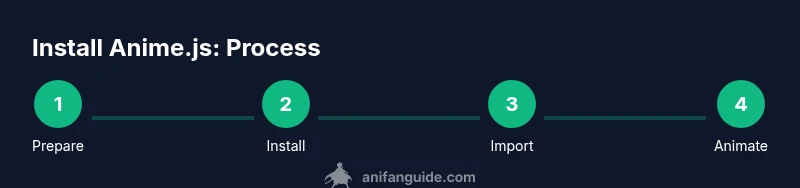
Step 1: Prepare your project environment
Before adding Anime.js, ensure your development environment is ready. Install Node.js and a code editor, then initialize a project if you don’t already have one. Create a simple HTML page to host your animation canvas or SVG element. If you’re using a build system, confirm your bundler configuration can resolve ES modules or CommonJS depending on your import choice. Keeping a clean project root with a dedicated src folder makes future maintenance easier. This preparation reduces friction when you move to actual installation and import steps. Remember to keep your project directory organized so you can easily manage assets, styles, and animation code as you scale up your UI work in 2026.
Step 2: Install the library (npm or yarn)
Choose your package manager and install Anime.js into your project. If you’re starting from scratch, run the npm or Yarn command in your project root to add the library to your dependencies. This step does not affect existing code, but it places Anime.js into your build pipeline so you can import it in your JavaScript files. After installation, verify that node_modules contains the animejs package and that package.json lists it under dependencies. Keeping dependencies up to date helps maintain compatibility with browser updates and performance improvements over time.
Step 3: Import anime.js into your code
Depending on your setup, import Anime.js as an ES module or a CommonJS require. In modern environments, you can use: import anime from 'animejs/lib/anime.es.js'; If you’re using CommonJS, require('animejs'). Then, create a small test script to confirm the library is available by logging a simple animation property or function. This step ensures the library is wired correctly into your codebase before you build more complex effects. As you expand, you can organize your imports by feature or page to keep your code maintainable.
Step 4: Create a simple animation
With Anime.js wired up, try a basic animation to validate the setup. A simple example moves a square across the screen over 800 milliseconds with a smooth easing curve. Include a tiny HTML element (e.g., a div) and apply the animation using the anime() function. This hands-on test provides a tangible reference point for comparing different easing curves, durations, and targets as you refine your design language. Document the exact values you used so you can iterate quickly later.
Step 5: Debugging and common issues
If the animation doesn’t run, check your console for errors related to module resolution or syntax. Common issues include incorrect import paths, bundler misconfigurations, or mismatched DOM targets. Ensure your DOM element exists before you trigger the animation and that your script runs after the DOM is ready. If you’re loading via CDN, confirm the script URL points to a valid version and add a fallback in case of network failure. Debugging is an essential skill when integrating a new library into a production workflow.
Step 6: Performance considerations and best practices
Performance is critical for perceived fluidity. Use requestAnimationFrame-aware timing where possible, prefer CSS transforms over layout properties for smoother rendering, and batch DOM reads/writes to minimize reflows. When combining Anime.js with other UI libraries, isolate animation code to avoid contention and keep animations lightweight on lower-end devices. In production, test on multiple devices and network conditions to ensure consistent experience, and consider progressive enhancement strategies so users with limited capabilities still have usable interactions.
Step 7: Next steps: real-world integration
Now that you’ve installed Anime.js and written a basic animation, plan your next steps. Build a small animation library of reusable presets, integrate with your component framework, and document common patterns for your team. Consider accessibility implications, such as avoiding motion sickness or offering a reduced motion option. With a solid foundation, you can progressively add timelines, staggered sequences, and responsive behaviors to deliver engaging, accessible experiences in 2026.
Tools & Materials
- Computer with Node.js installed(Ensure Node.js is v12+ for compatibility with most tooling)
- Code editor(VS Code or similar recommended)
- Internet connection(Needed for package downloads and CDN access)
- Package manager (npm or yarn)(npm is bundled with Node.js; yarn is optional)
- A simple HTML file and a JS entry point(Test page to host the animation)
- Optional: CDN script for quick experiments(Useful for rapid prototyping without a build step)
Steps
Estimated time: 30-60 minutes
- 1
Prepare your project
Set up a basic project structure with an index.html and a src folder. Create a div element to animate and include a minimal CSS setup to visualize motion. This establishes a stable baseline before adding the library.
Tip: Keep paths consistent and test in a local server to mirror production more closely. - 2
Install Anime.js
Run npm install animejs or yarn add animejs in your project root. Verify that package.json lists animejs under dependencies and that node_modules contains the library.
Tip: Use --save-exact to lock the exact version if you want reproducible builds. - 3
Import the library
In your JavaScript entry point, import the library using the ES module syntax or require. Confirm the import resolves by logging a basic property from the anime object.
Tip: Place imports at the top of the file to keep scoping predictable. - 4
Create a simple animation
Write a tiny animation that targets a DOM element and changes a property like translateX over a short duration. This confirms the basic workflow and gives you a reference for tweaking values.
Tip: Start with a short duration and a pick a single property to avoid confusion. - 5
Test and refine
Open your page in a browser, observe the animation, and adjust duration, easing, and targets. Iterate until the motion feels natural and responsive.
Tip: Use multiple easing presets to compare feel quickly. - 6
Document and scale
Add comments and create a small library of presets for common UI motions. Start planning how to integrate with a framework or build process.
Tip: Maintain a changelog for version updates and bug fixes.
Frequently Asked Questions
What is Anime.js and what problems does it solve?
Anime.js is a lightweight JavaScript animation library that can animate CSS, SVG, and DOM attributes. It simplifies timing, easing, and sequencing, allowing you to create polished UI motion without heavy dependencies.
Anime.js is a lightweight tool for animating CSS, SVG, and DOM properties. It makes timing and sequencing straightforward for clean UI motion.
Is npm the only way to install Anime.js?
No. You can install via npm or Yarn for production builds, or use a CDN script for quick experiments. Choose based on your project needs and build tooling.
You can use npm, Yarn, or a CDN. Pick what fits your workflow.
How do I import Anime.js in an ES module project?
In modern projects, import anime from 'animejs/lib/anime.es.js' to access the library with ES modules. Ensure your bundler resolves the path correctly.
Import Anime.js with the ES module syntax. Check your bundler.
Can Anime.js work with frameworks like React or Vue?
Yes. Anime.js can be integrated into React, Vue, or other frameworks by targeting DOM elements in effect hooks or lifecycle methods, while keeping animation logic isolated from UI state logic.
It works with React and Vue by placing animation in effects or lifecycle hooks.
What should I test to ensure good performance?
Test on multiple devices, watch for jank, and prefer transforms over layout changes. Use reduced motion options for accessibility and consider framerate targets.
Test on devices, avoid jank, respect reduced motion settings.
Where can I find official examples or docs?
Refer to the Anime.js repository and documentation for API reference, common patterns, and advanced timelines. Community tutorials can complement official docs.
Check the official Anime.js docs and community tutorials.
Watch Video
Main Points
- Install via npm/yarn or CDN to fit your workflow
- Import anime.js correctly in your environment
- Start with a simple animation to validate setup
- Tune performance with transforms and batching
- Plan for production by documenting presets and accessibility